
Africa Mission

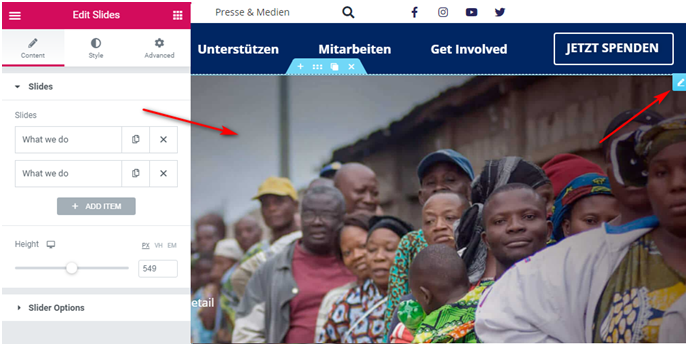
BANNER
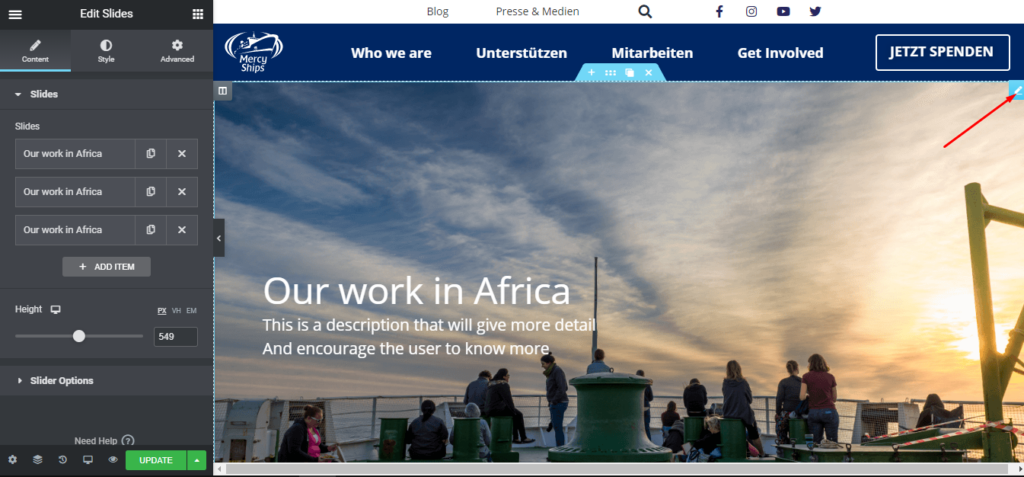
You can read docs here:https://docs.elementor.com/article/93-slides
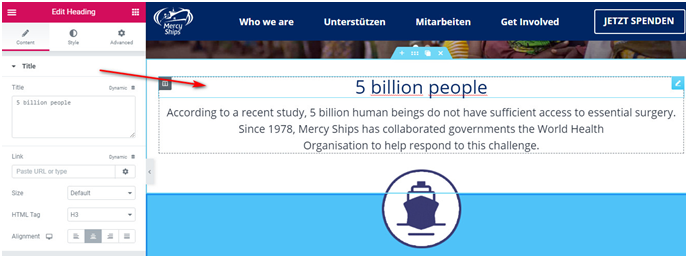
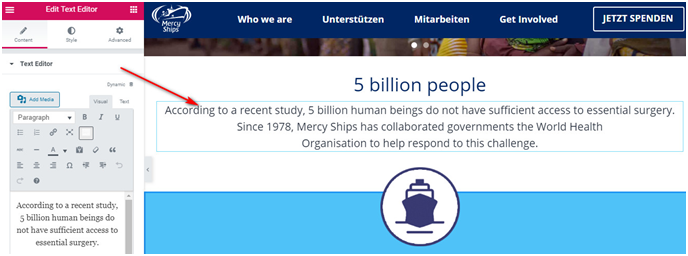
SECTION: 5 BILLION PEOPLE
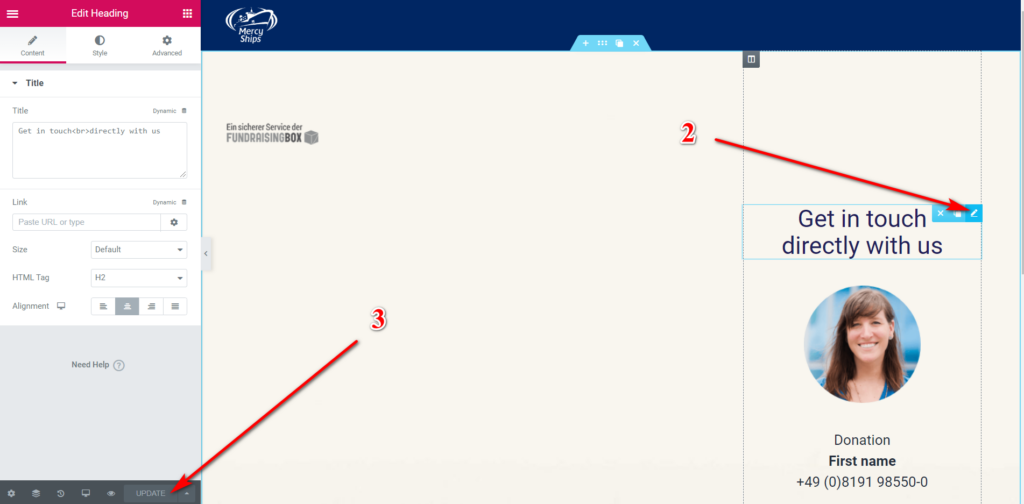
Edit element (1) => Edit text (2) => Update (3)
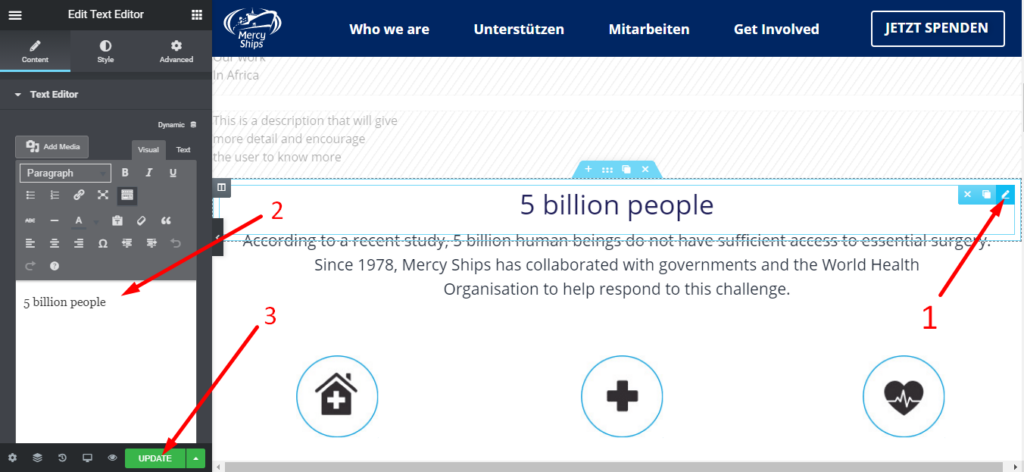
Edit element (1) => Edit text (2) => Update (3)
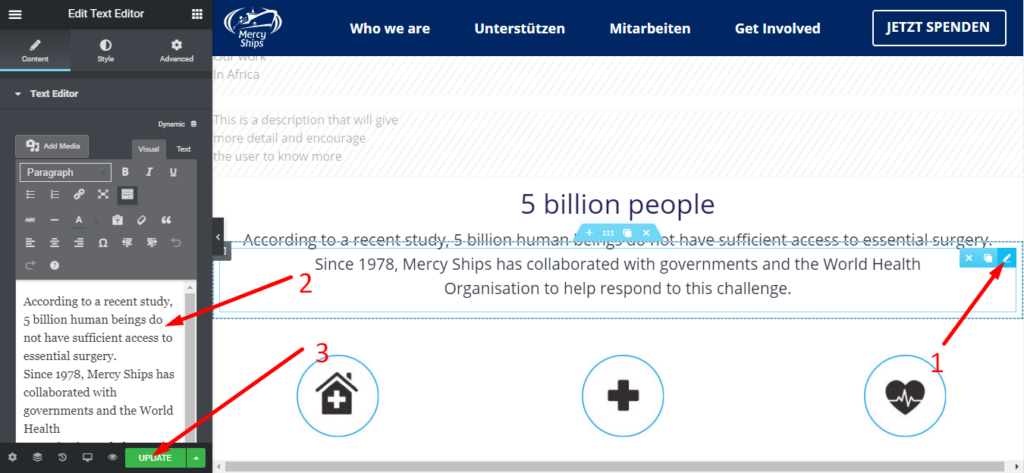
COUNTER
Edit element (1) => Change image (2) => Update (3)
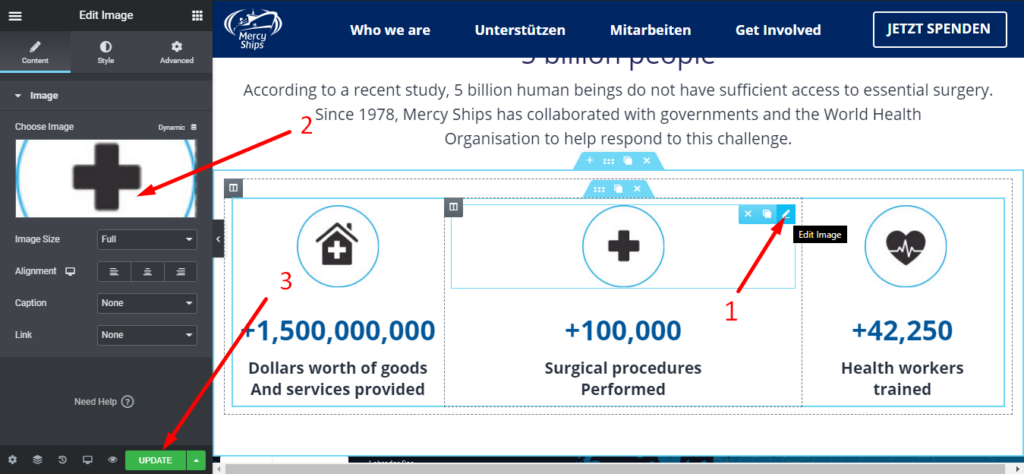
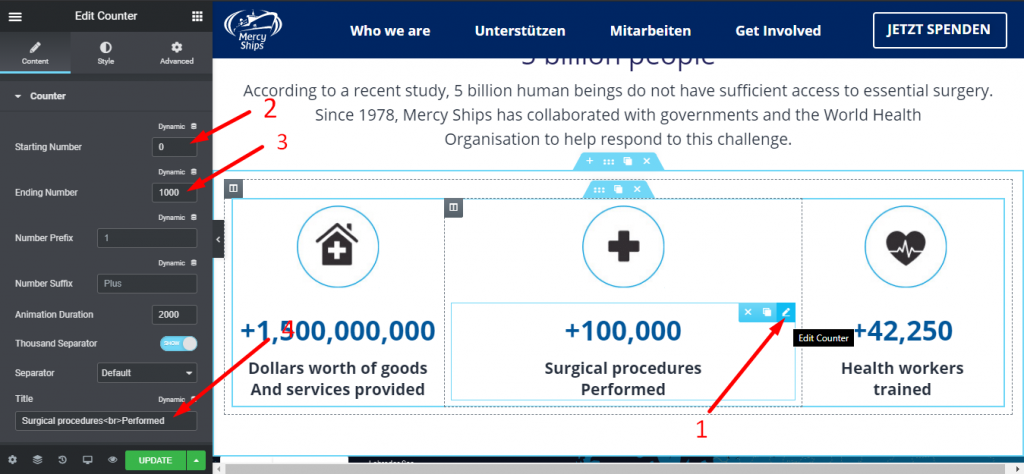
Edit element (1) => Change starting number (2) => Change Ending Number (3) => Change title (4)
MAP
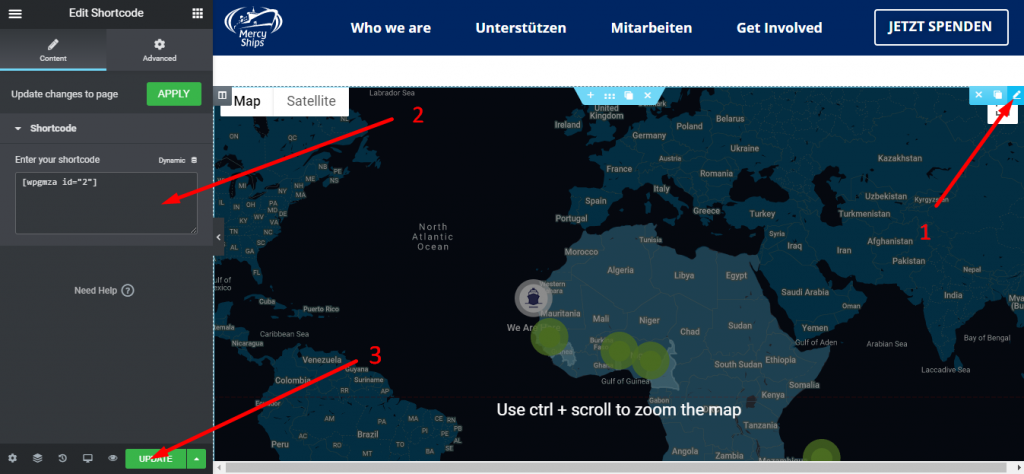
Edit element (1) => Edit shortcode (2) => Update (3)
WHERE WE ARE AND WHERE WE WENT SECTION
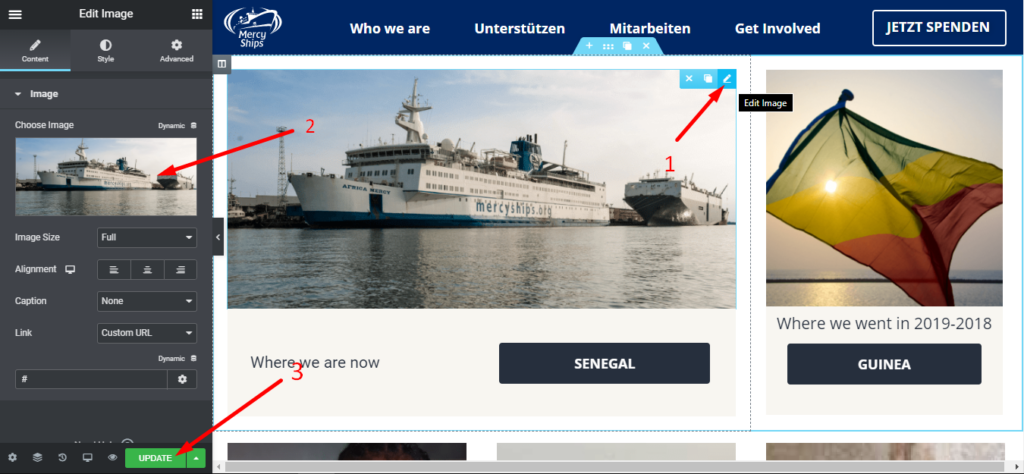
Edit element (1) => Change image (2) => Update (3)
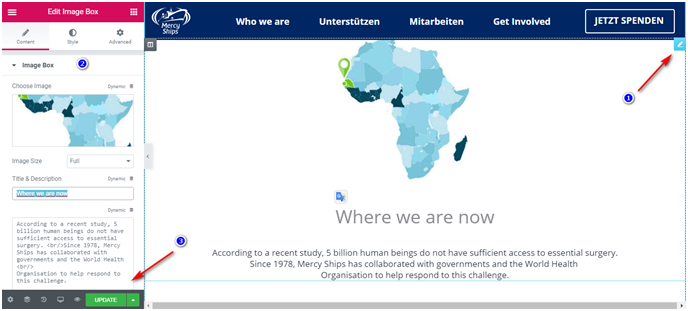
Edit element (1) => Edit text (2) => Update (3)
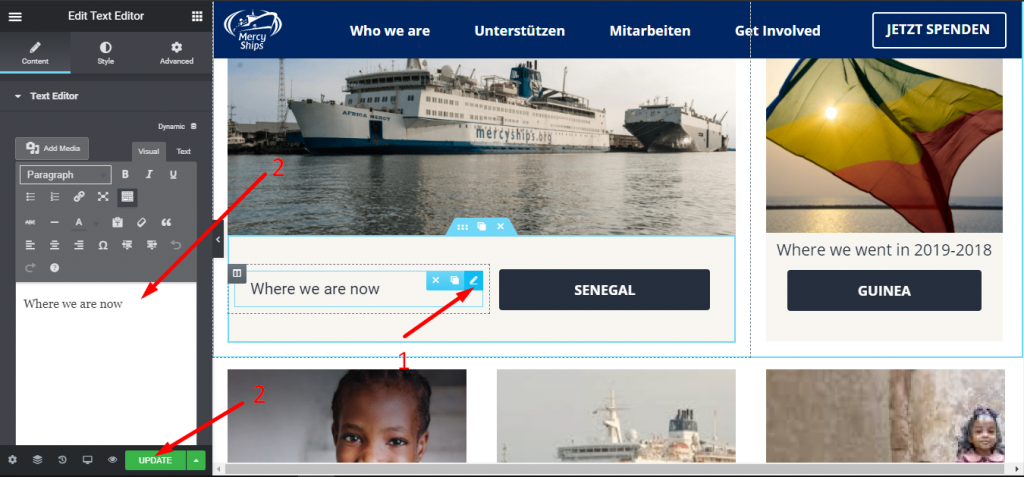
Edit element (1) => Edit text (2) => Update (3)
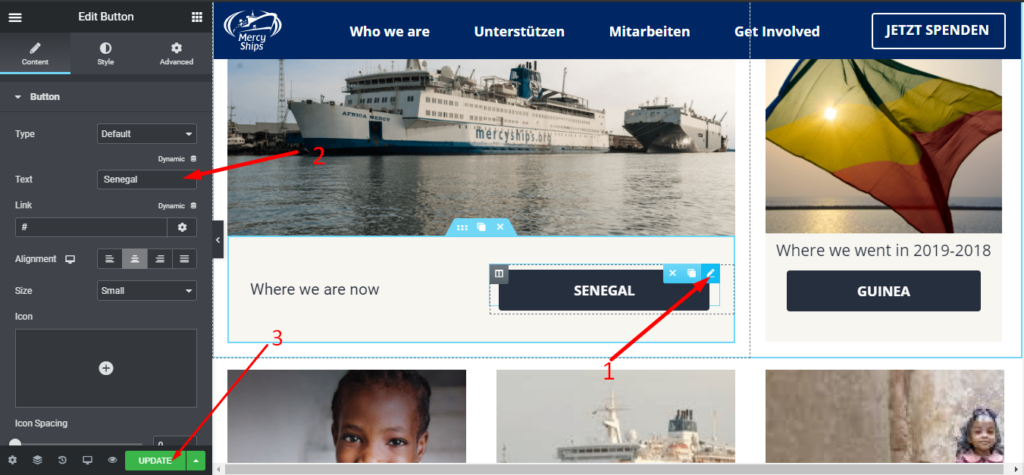
OVERVIEW
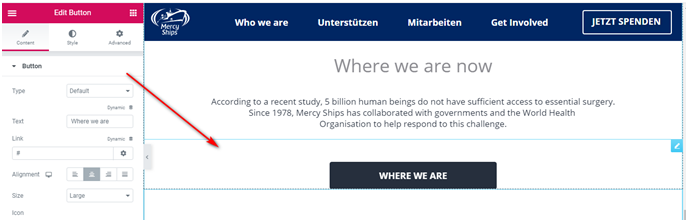
Edit element (1) => Edit link (2) => Update (3)
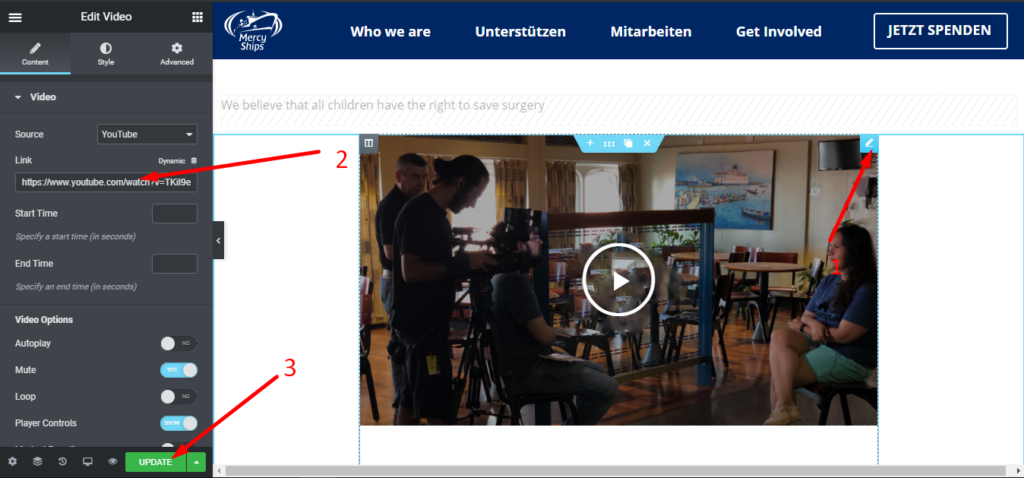
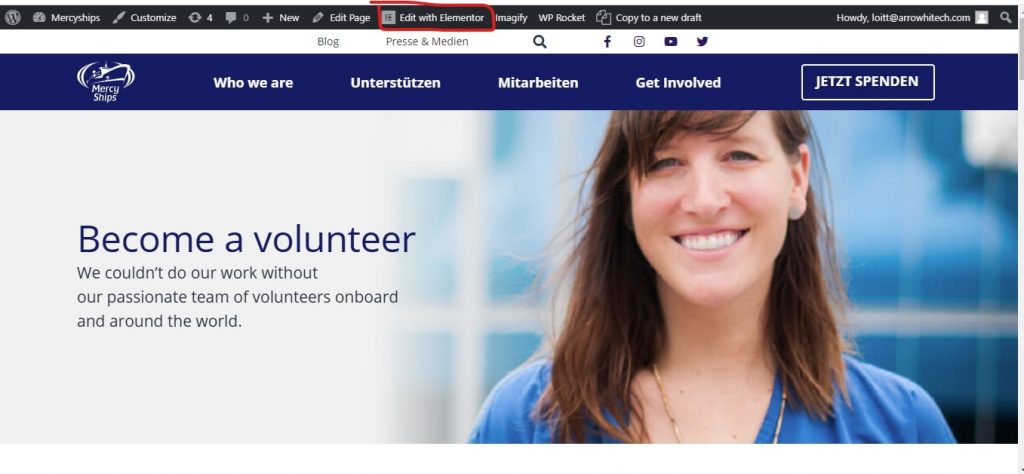
Become a volunteer Guide
Select Edit with Elemtor to edit page
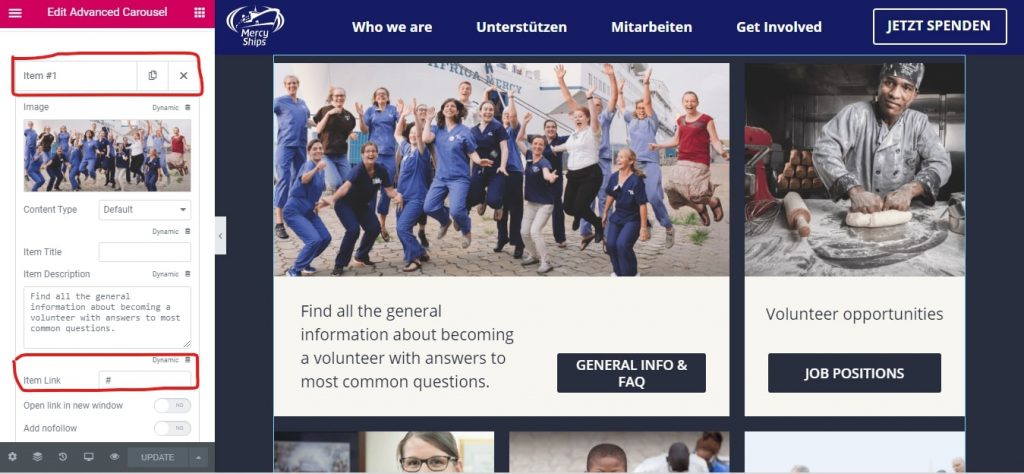
Select Section edit and add or edit content +link
Finally click Update
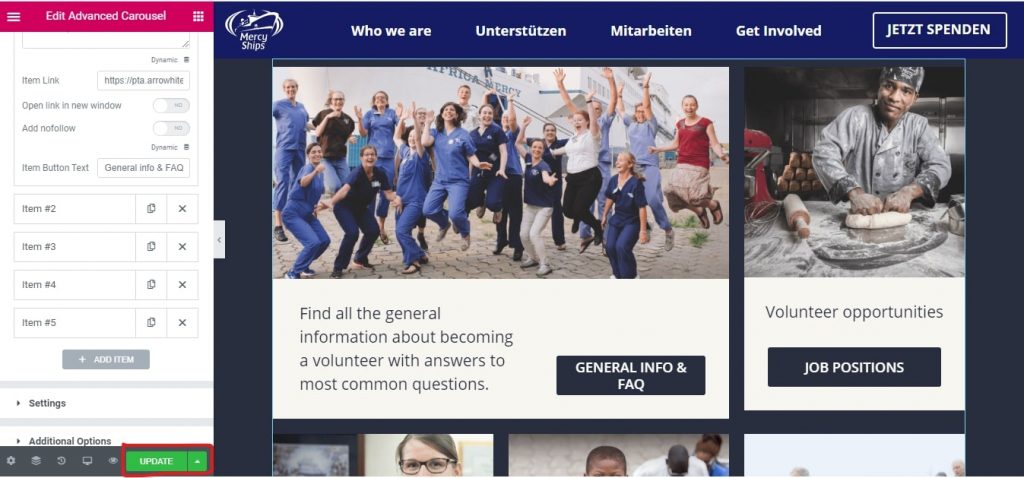
Create users for only blog
Give access to the blog to certain users so they can post blog.
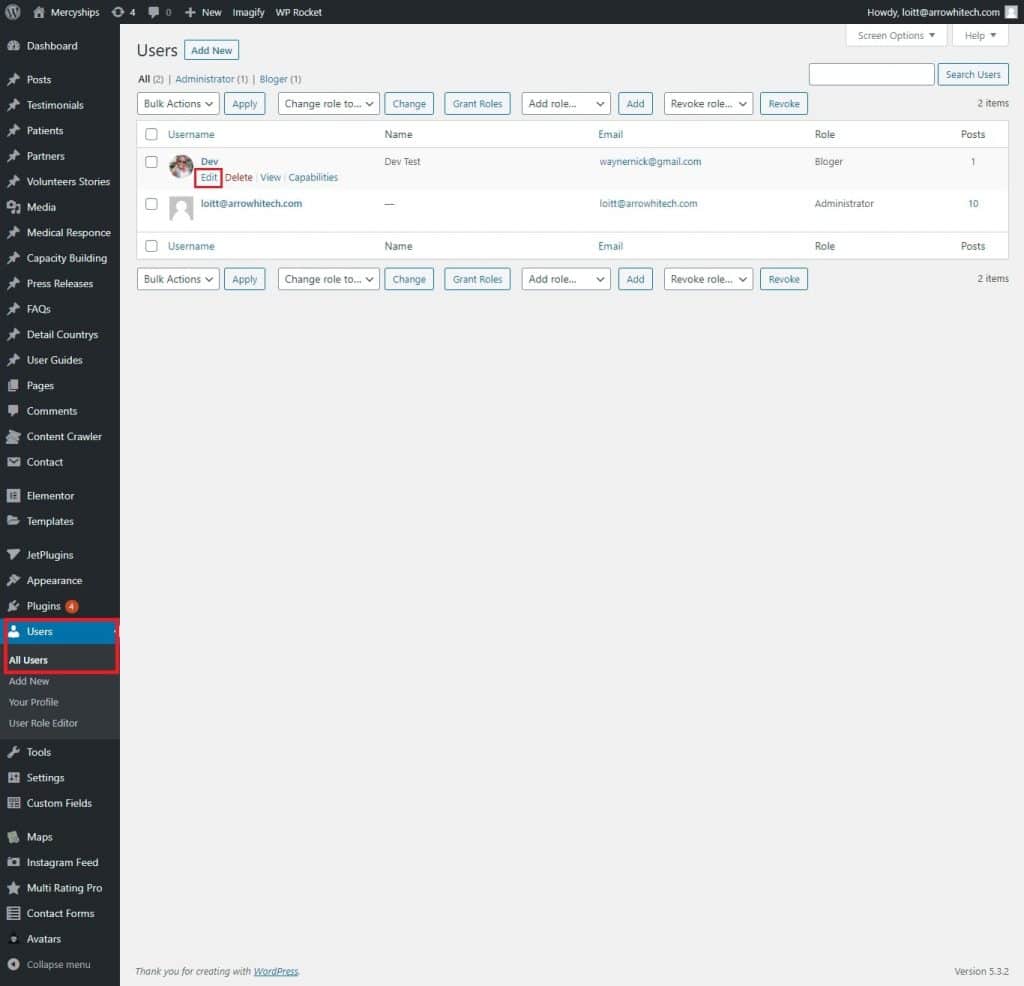
Go to User -> All User -> Select the user who needs permission and click Edit
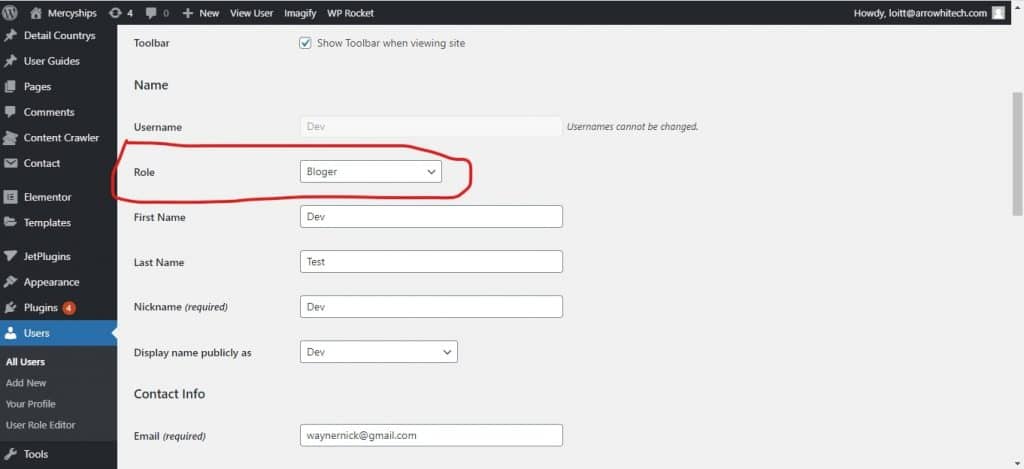
Set Role = Bloger -> Update User
We’ve created an account test role: [email protected]/admin123 . The attachment below is the case when logging in with this account :
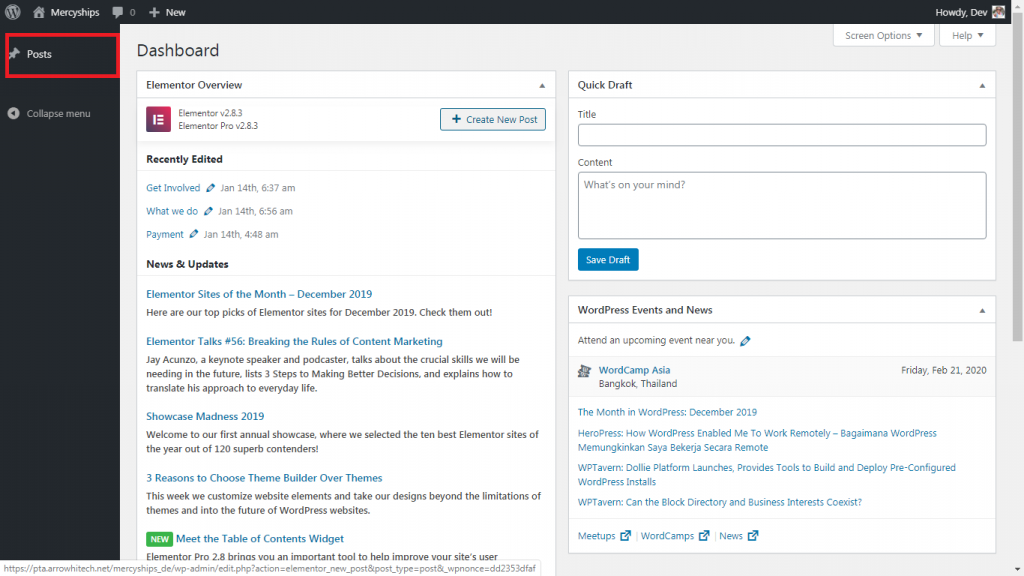
Bloggers can only submit reviews

Admin can review the post before it is published in the ”Pending” section.

Admin needs to take over and publish the post

Blog Detail
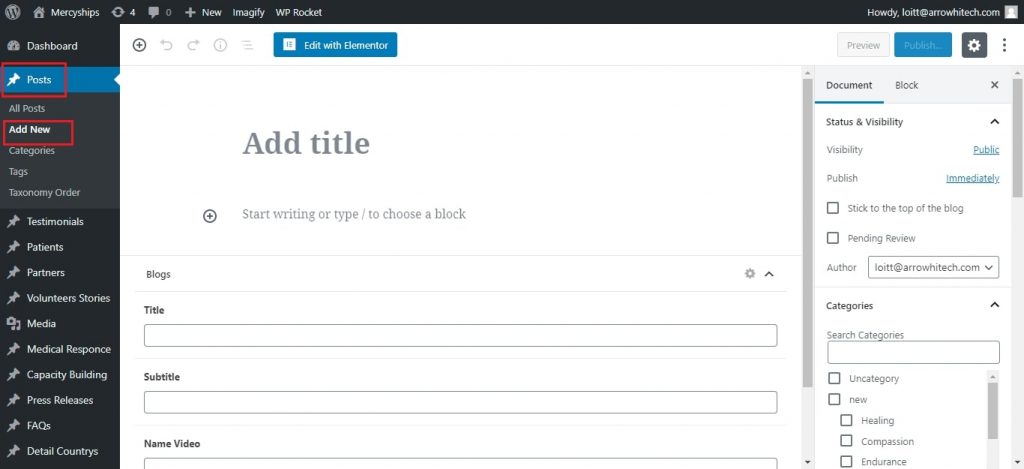
Create Post for blog :
Select Post -> New Post
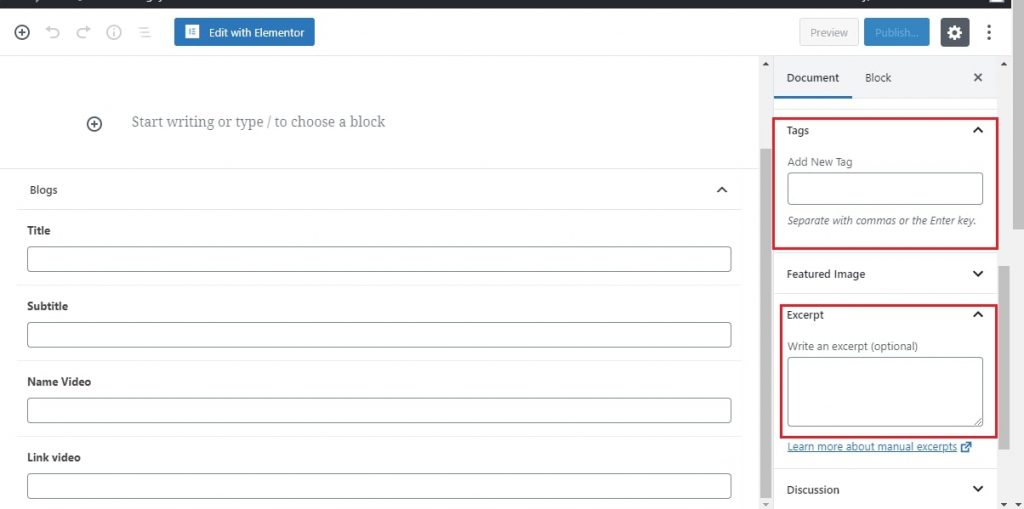
Add Tag and Excrept
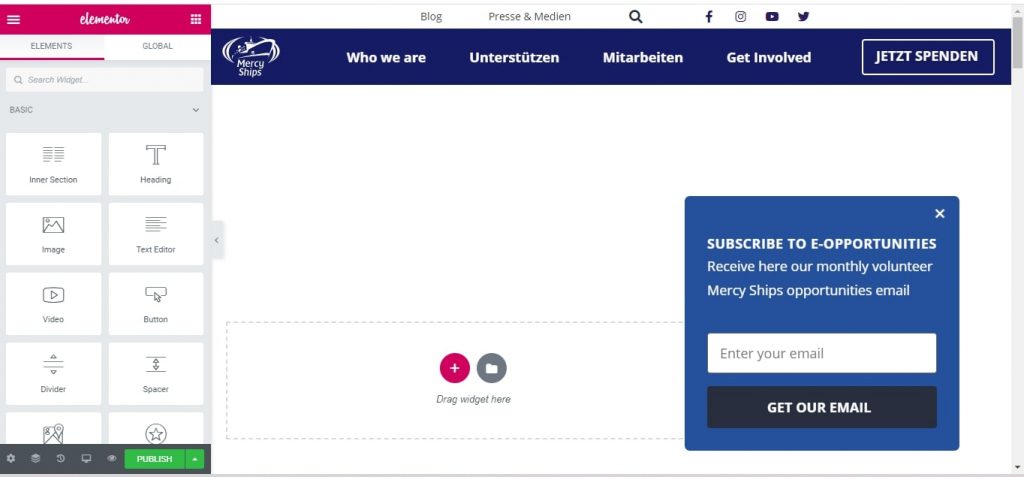
Click Edit with Elementor to create or edit Blog
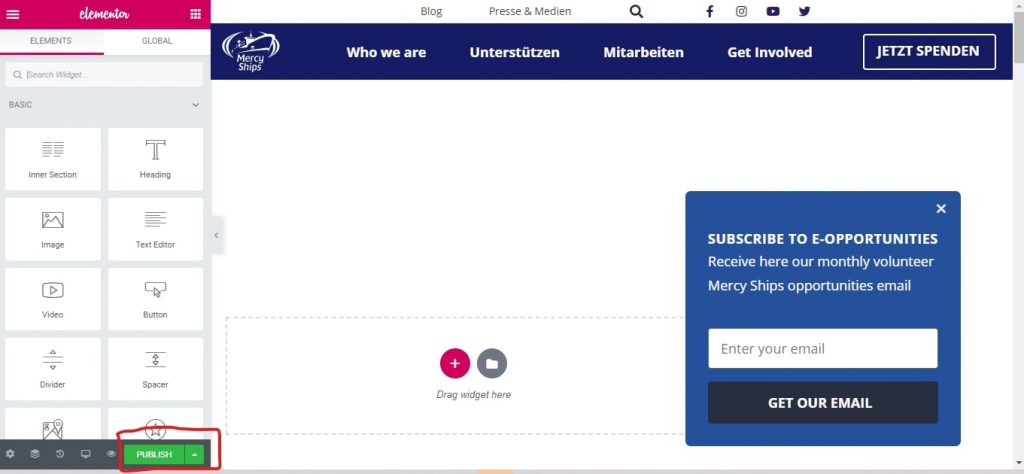
Finally click Publish
Blog Page
Select Post -> Categories
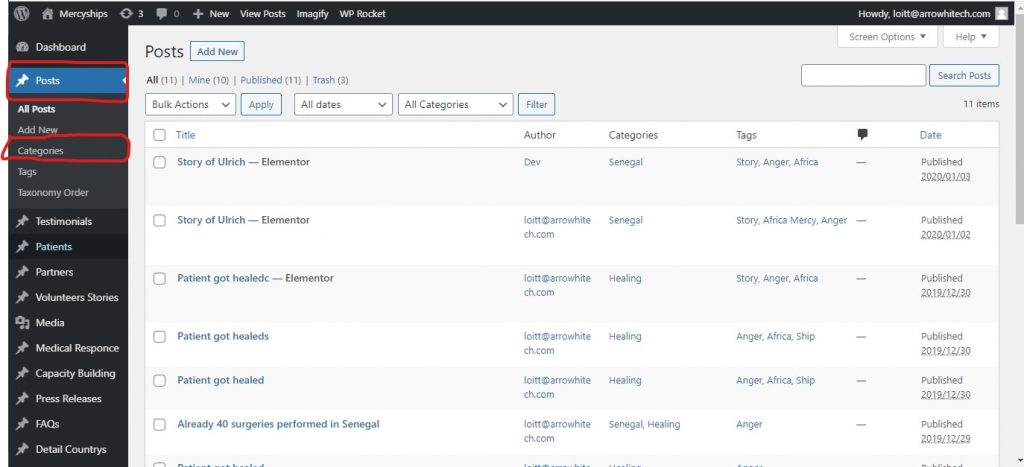
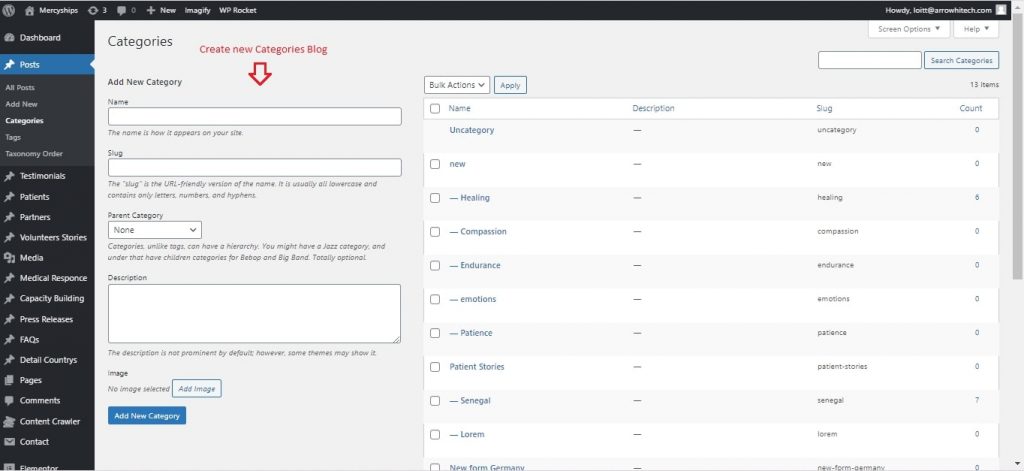
To create a new category please enter the category information in the left column and click Add new category
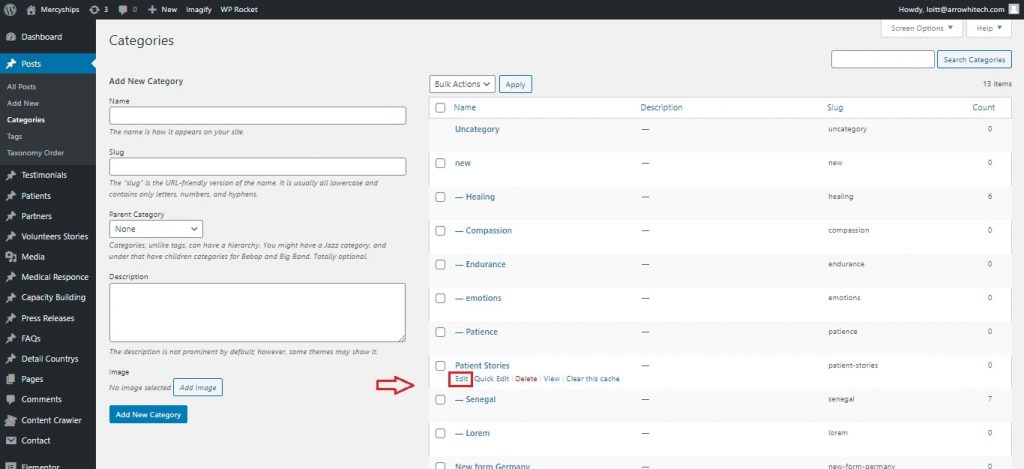
To edit category please hover categories name and select Edit
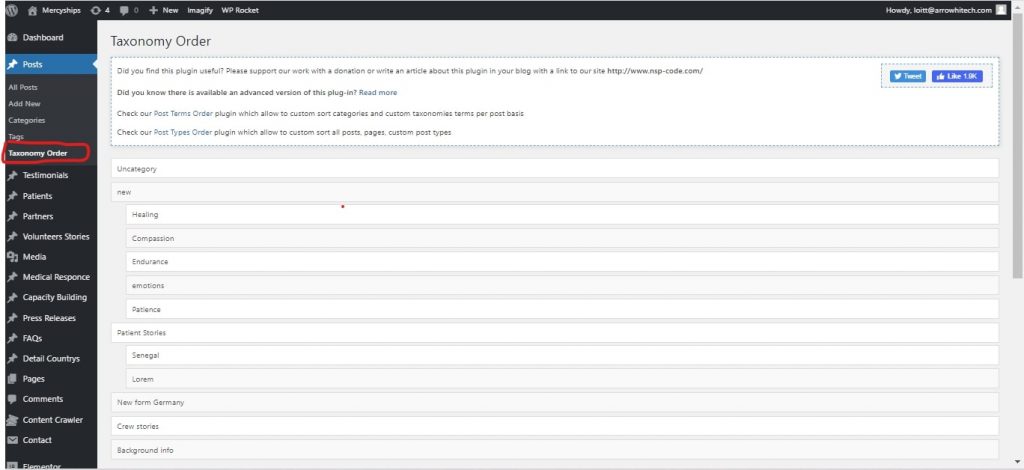
To sort the category order please go to Taxonomy Oder. Finally select Update to save
The search button blog page will return only results post of blog
Contact Volunteering
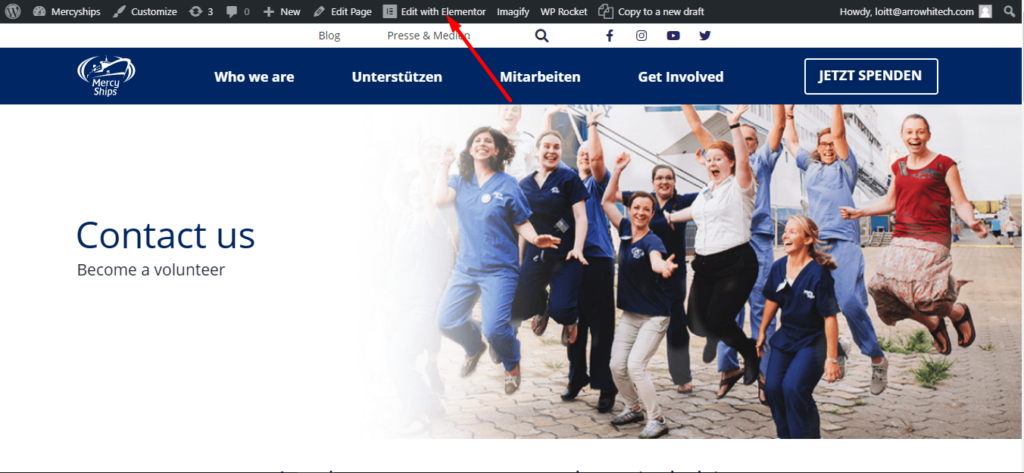
BANNER
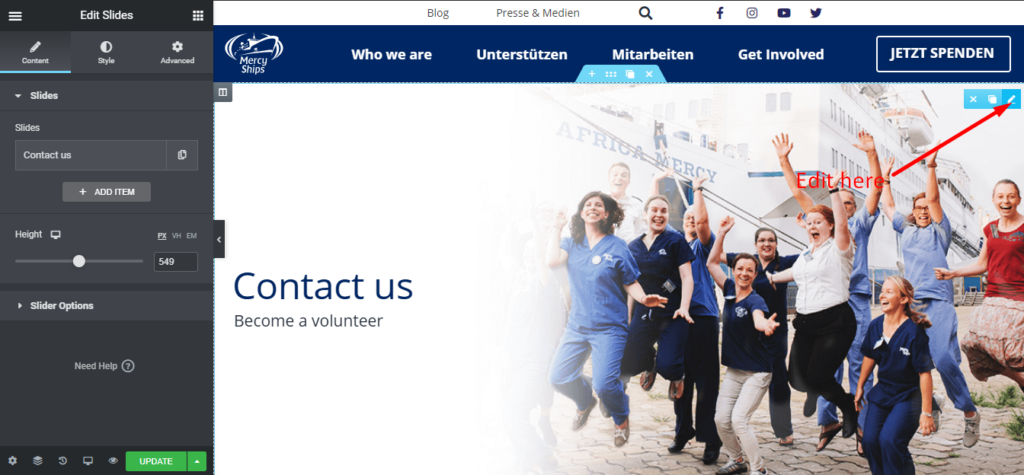
You can read docs here:https://docs.elementor.com/article/93-slides
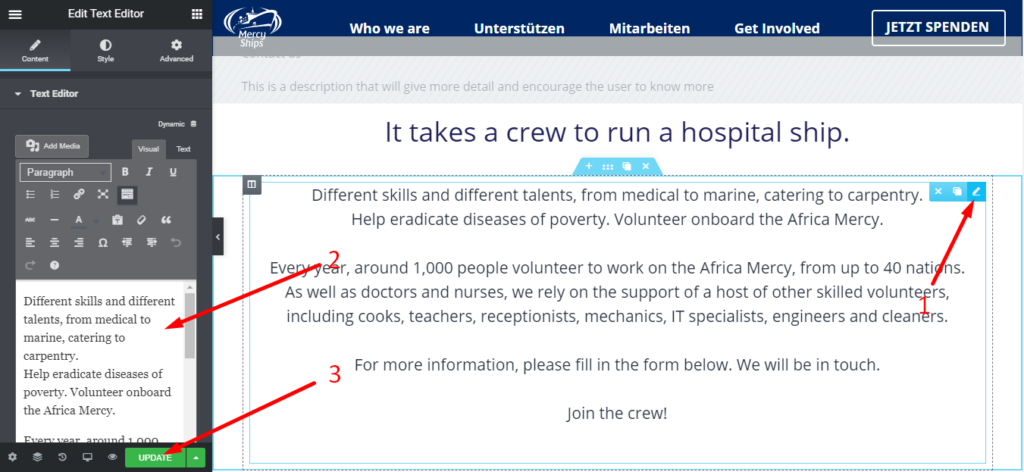
IT TAKE A CREW SECTION
Edit element (1) => Edit text (2) => Update (3)
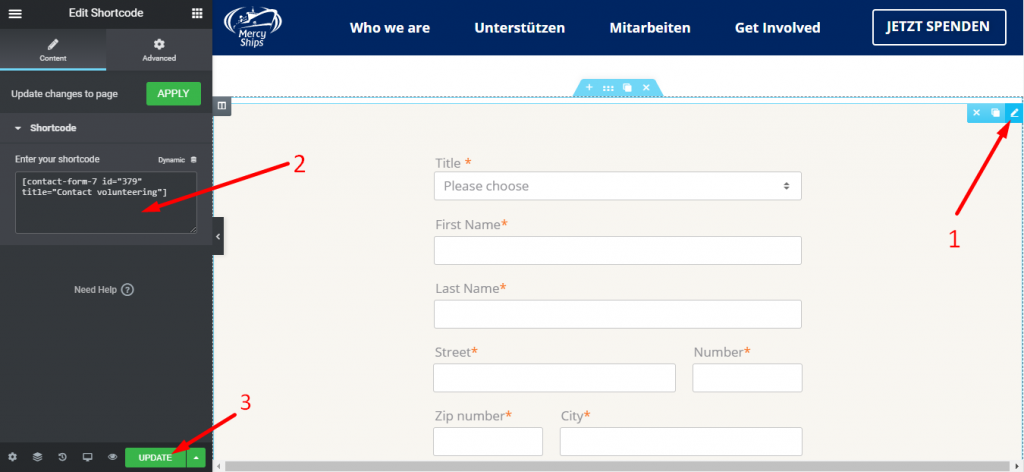
FORM
Edit element (1) => Edit shortcode (2) => Update (3)
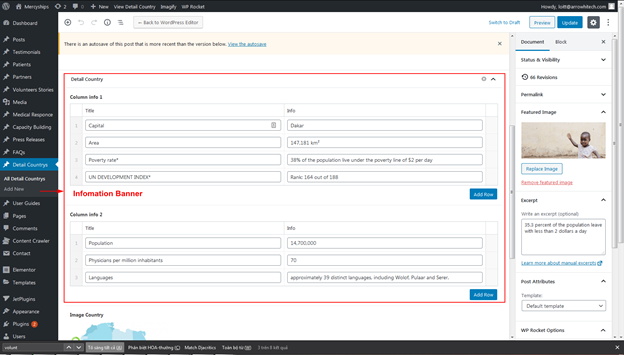
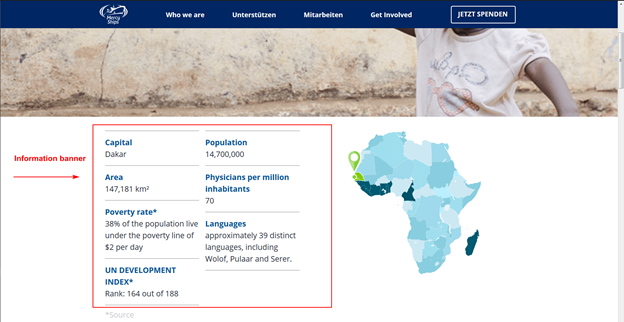
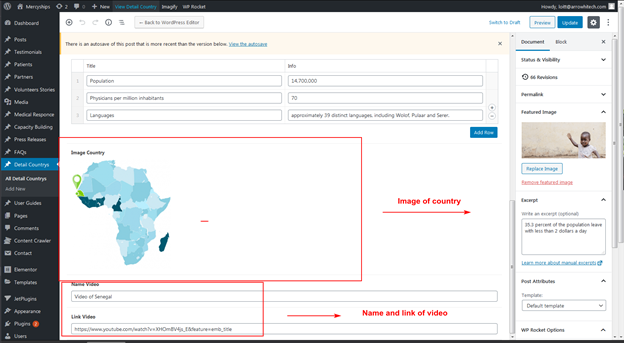
Detail country
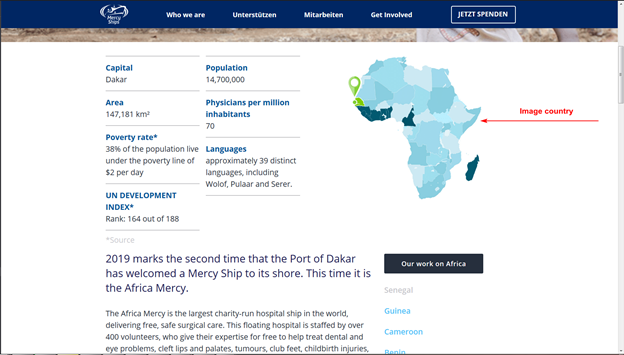
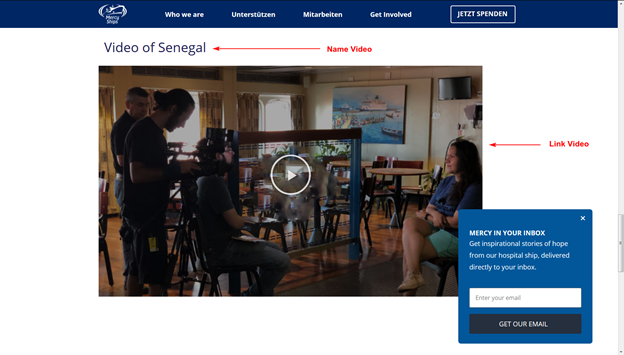
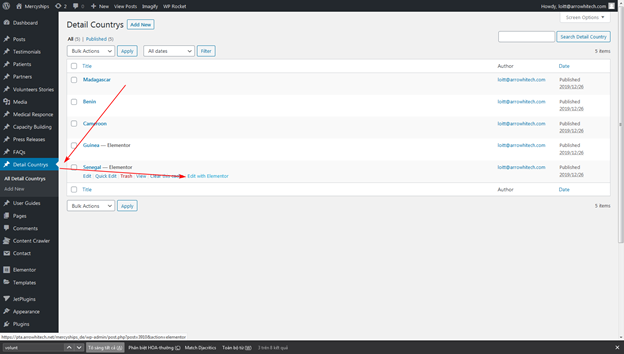
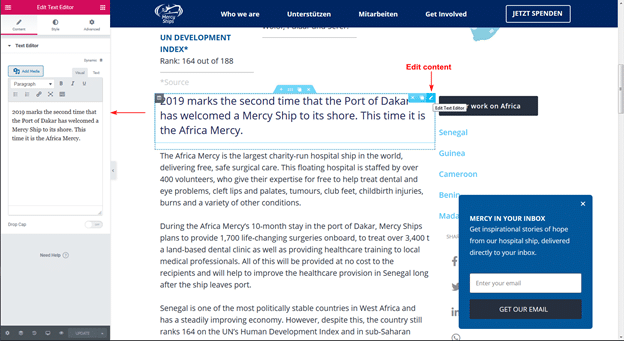
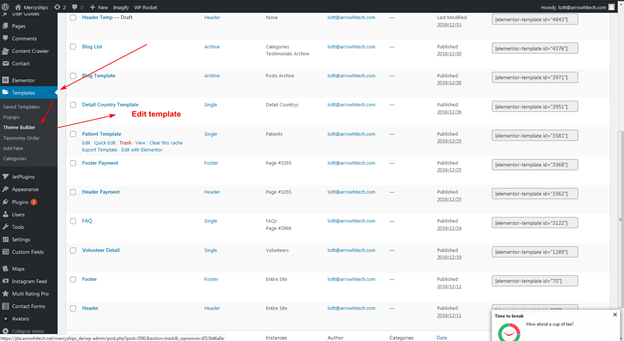
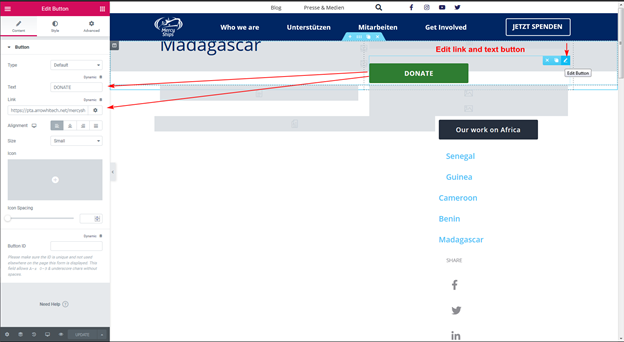
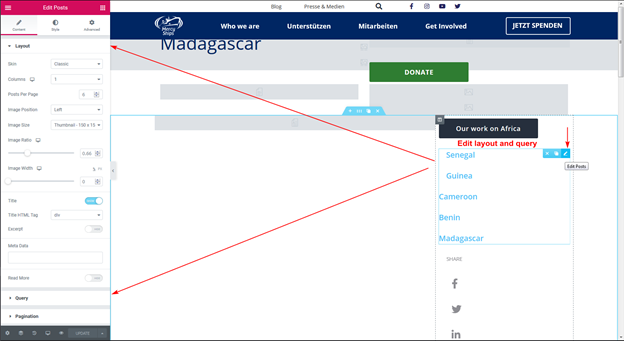
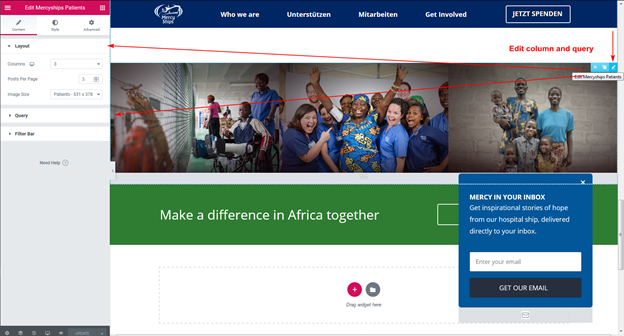
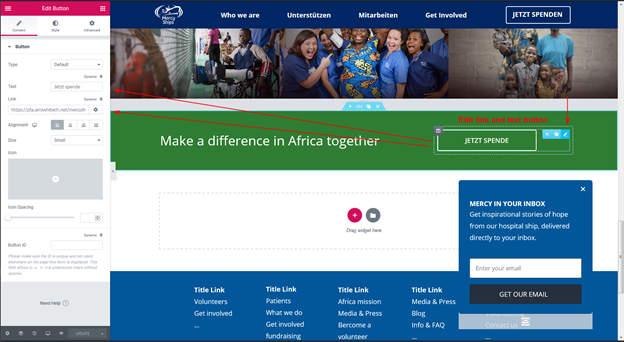
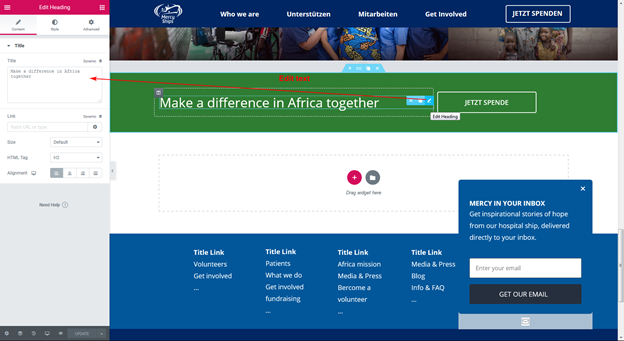
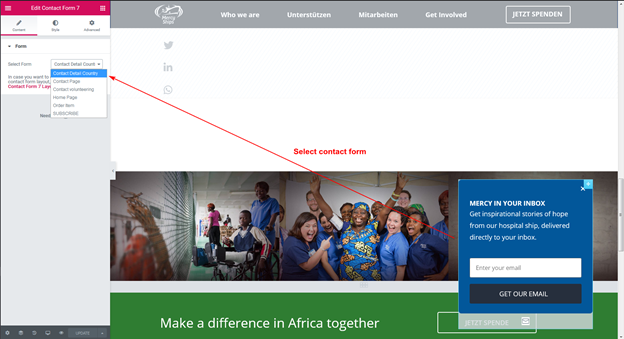
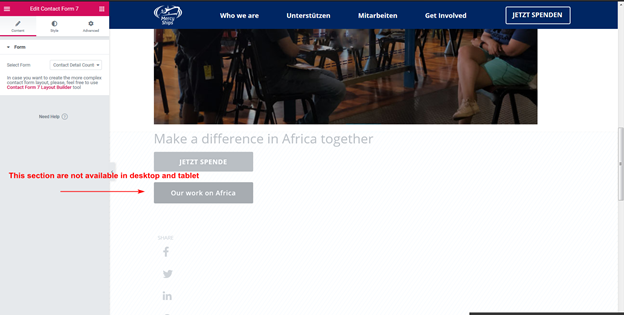
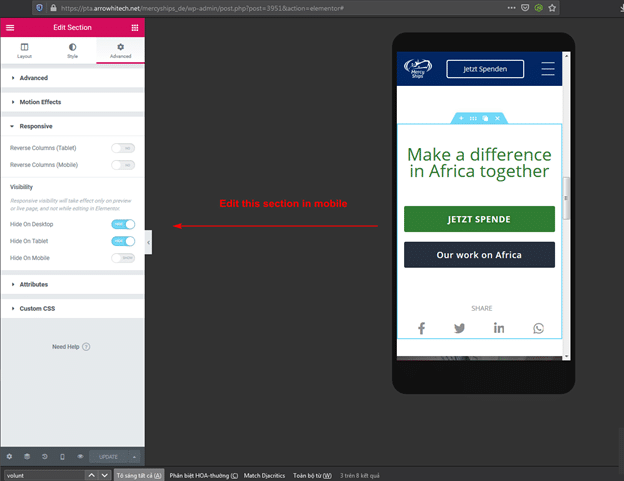
Form
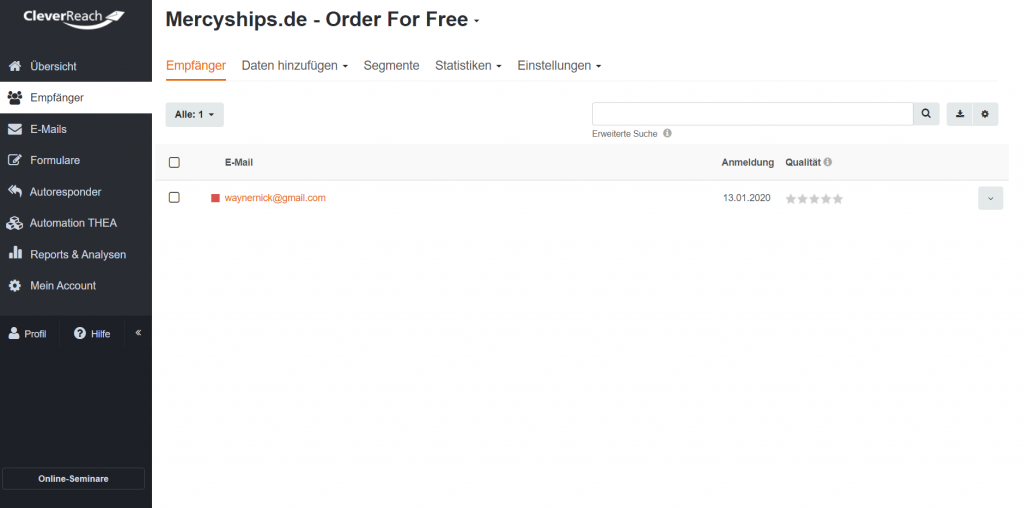
Contact Form (1) => Choose Form (2)=> tab Cleverreach (3) => Choose Group want mapping (4) => mapping field (5)
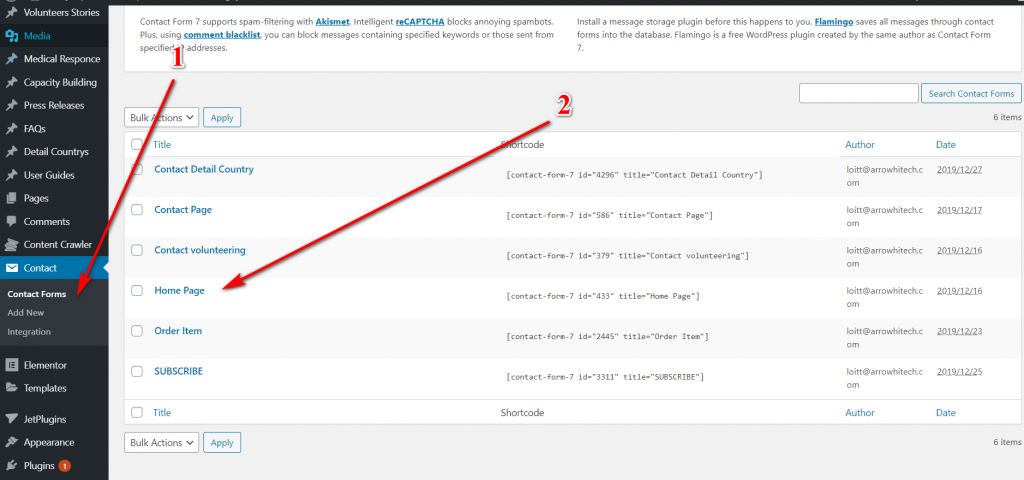
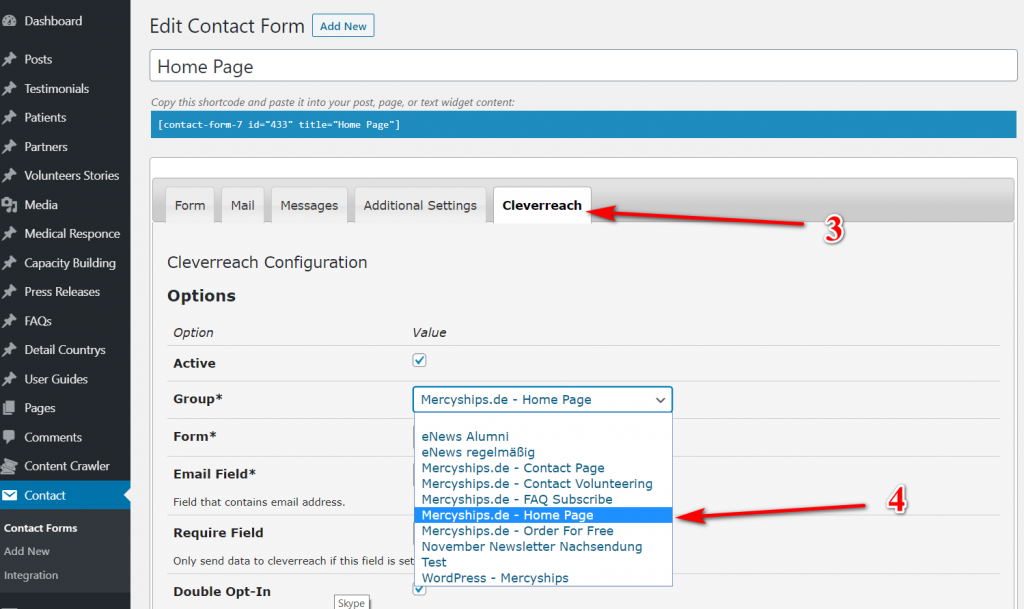
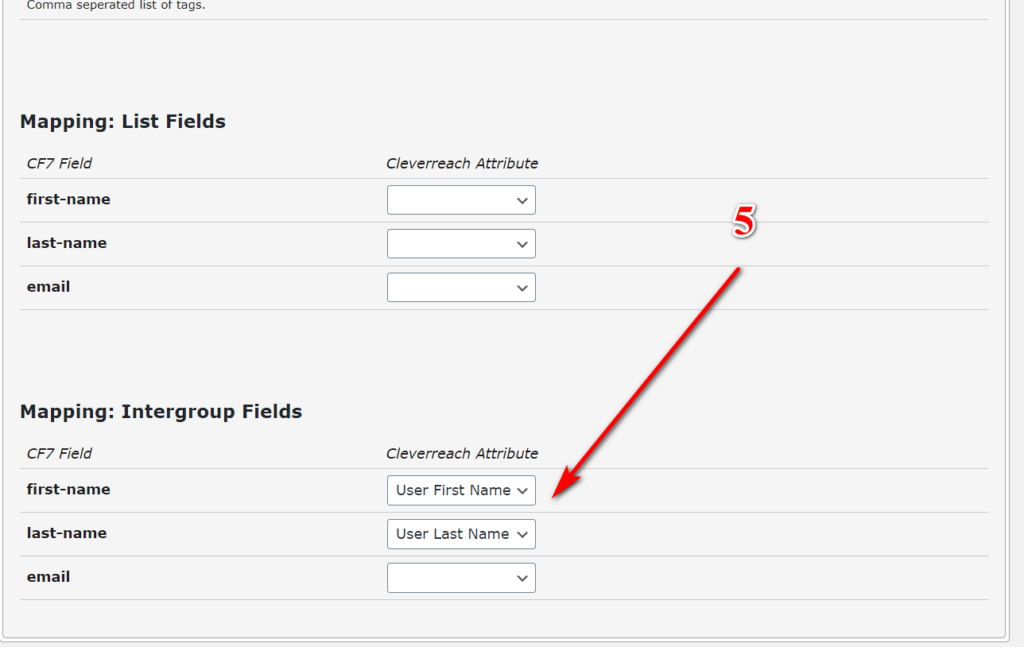
All Group cleverreach in Step (4)
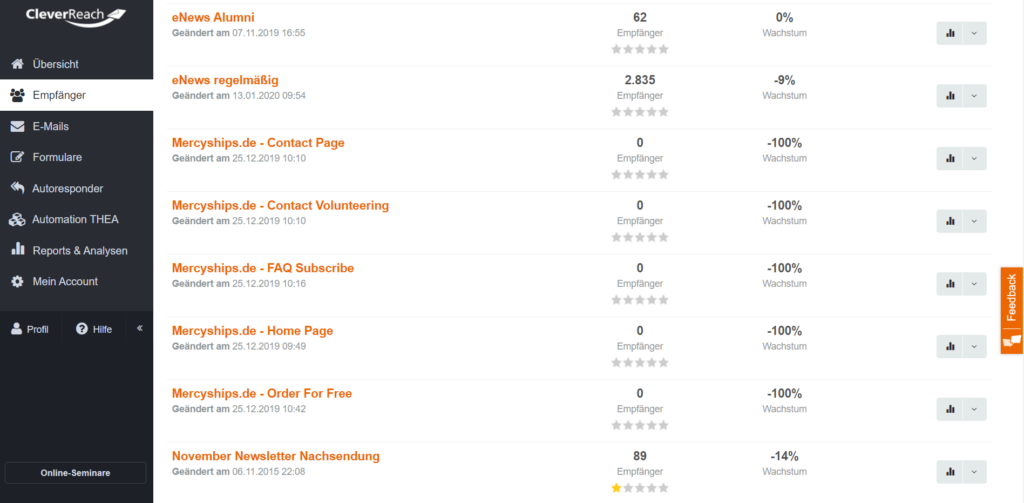
List Email after submit form
Get Involved
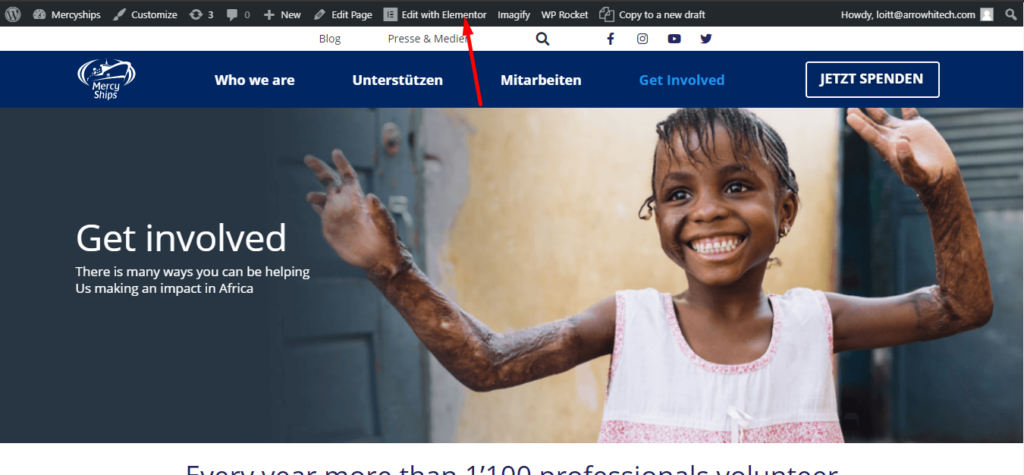
BANNER
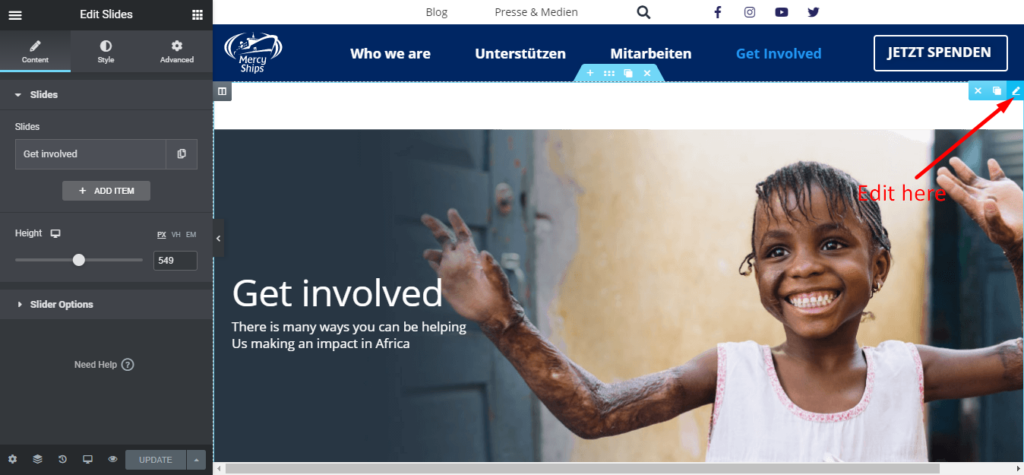
You can read docs here:https://docs.elementor.com/article/93-slides
EVERY YEAR SECTION
Edit element (1) => Change image (2) => Update (3)
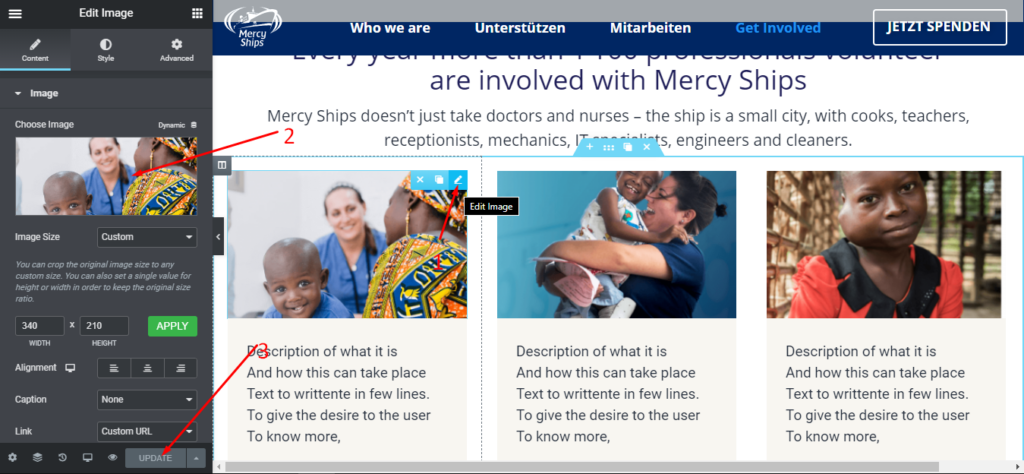
Edit element (1) => Edit text (2) => Update (3)
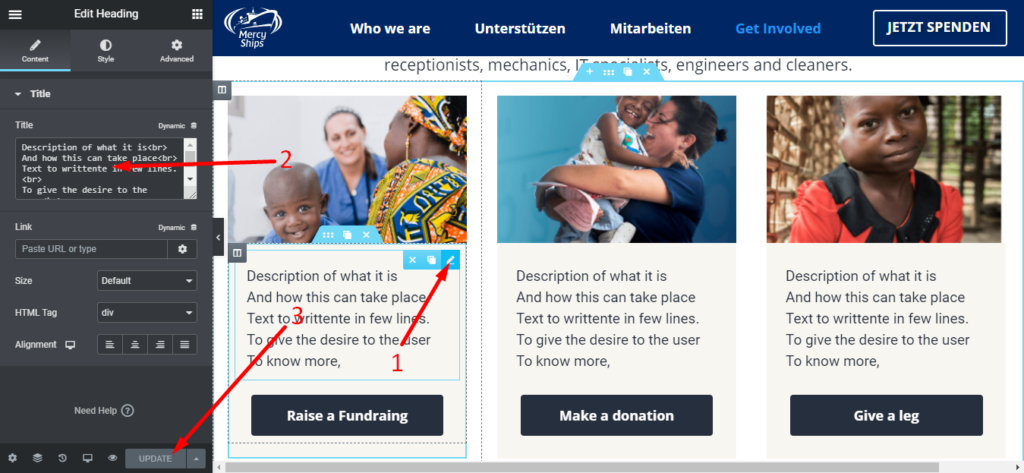
Edit element (1) => Edit text (2) => Update (3)
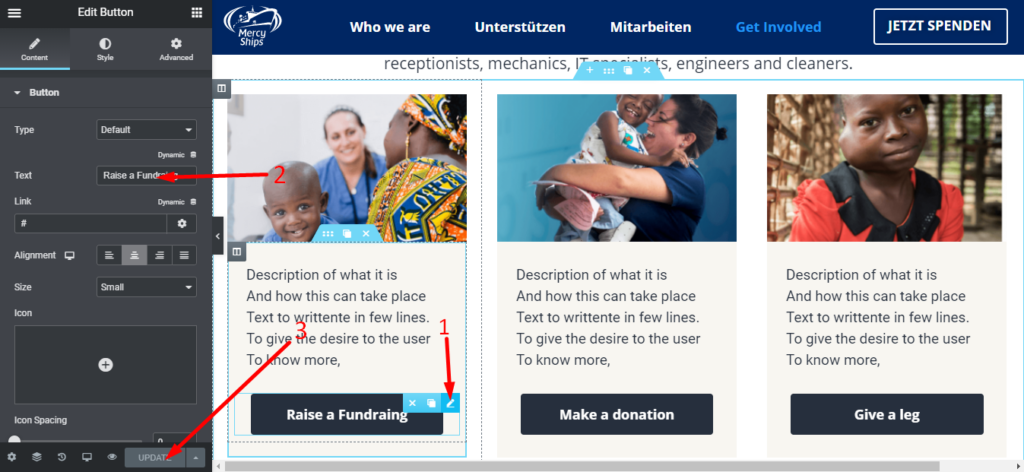
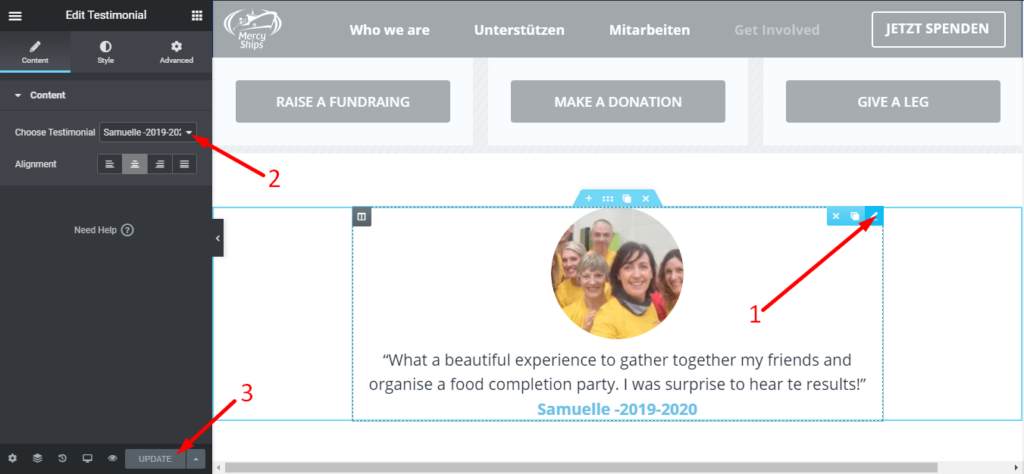
TESTIMONIAL
Edit element (1) => Choose Testimonial (2) => Update (3)
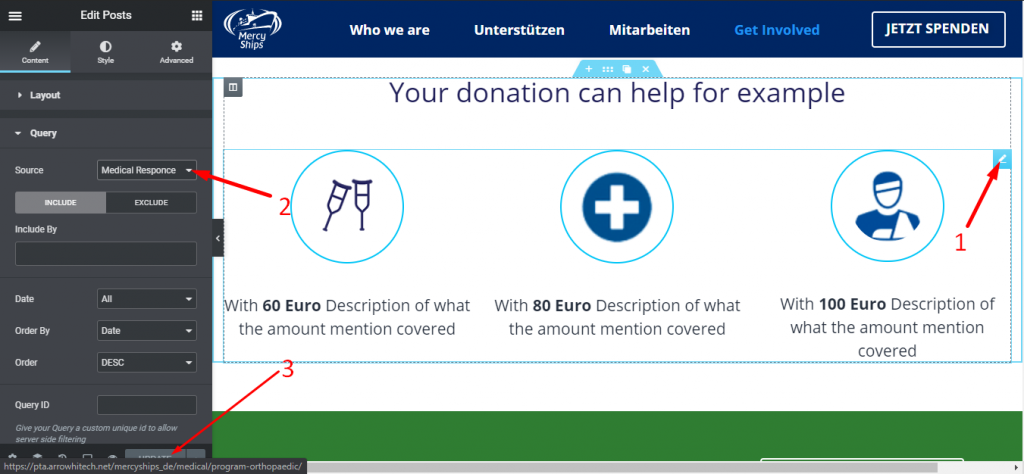
DONATION
Edit element (1) => Edit source (2) => Update (3)
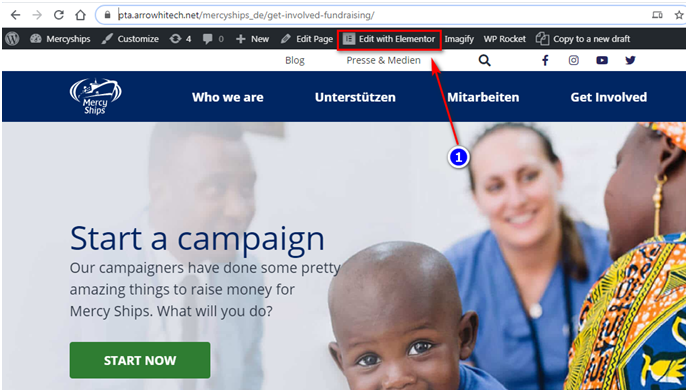
Get involved fundraising
BANNER
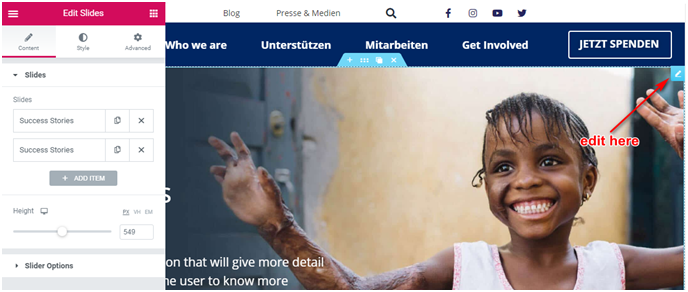
IMAGE TEXT BOX
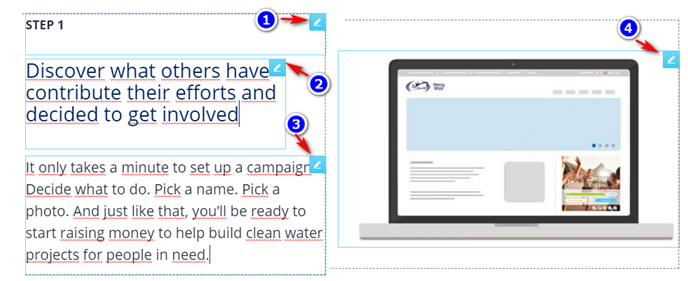
Similar with step 2 and step 3
What others have done
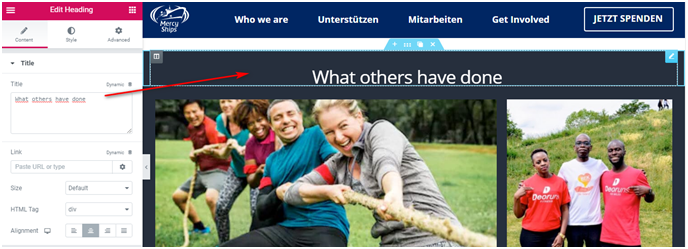
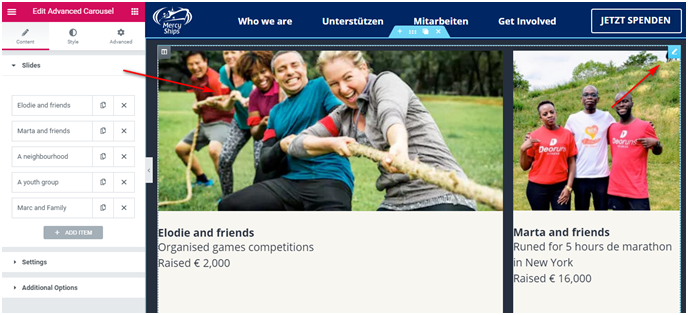
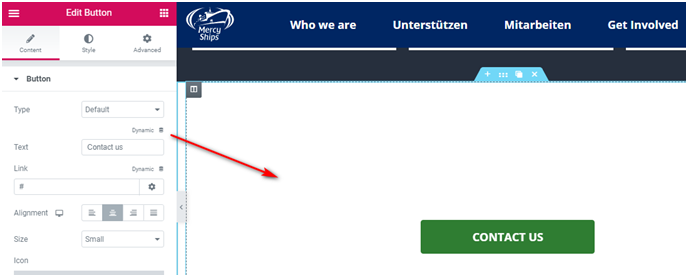
TESTIMONIAL
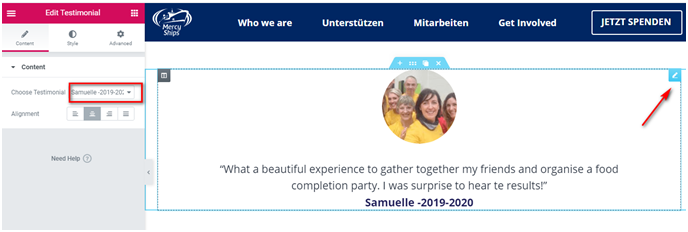
SOCIALS SHARE
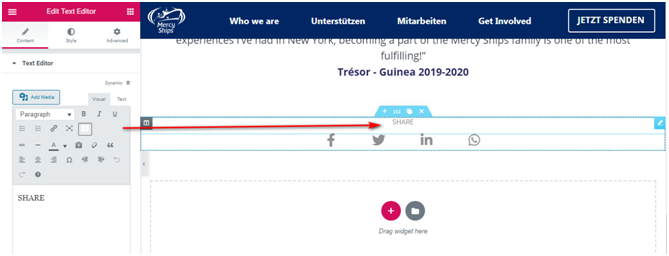
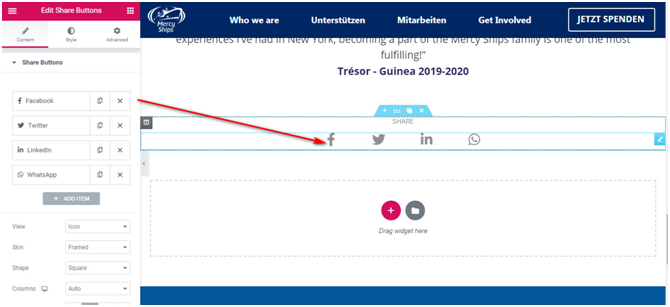
Header
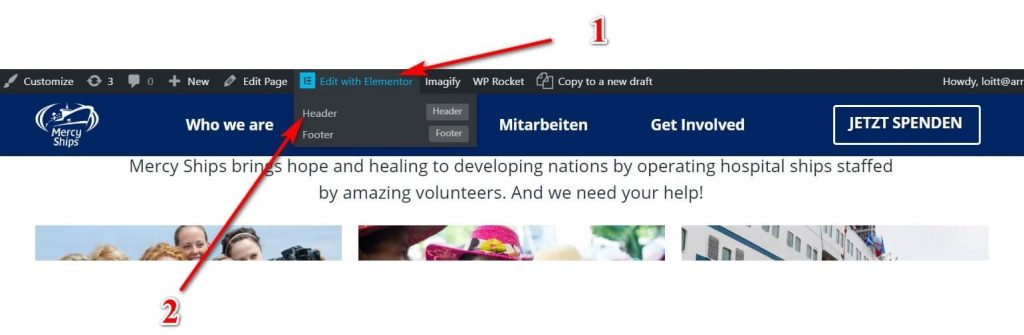
Login admin account:
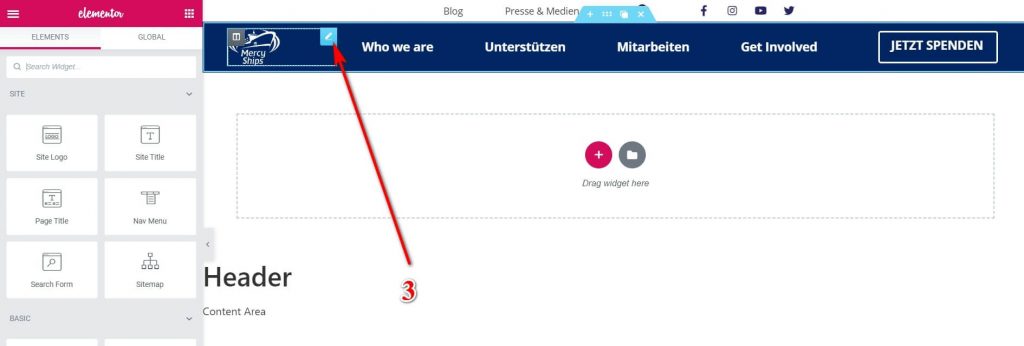
Hover Edit with Elementor (1) => Header (2) => By Click section want to edit you can easy change (3)
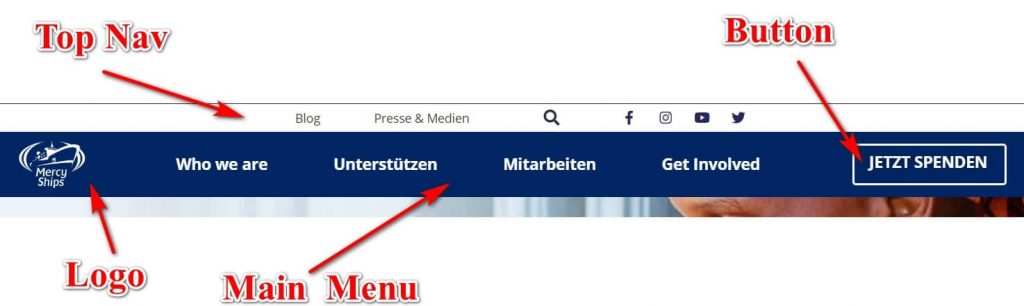
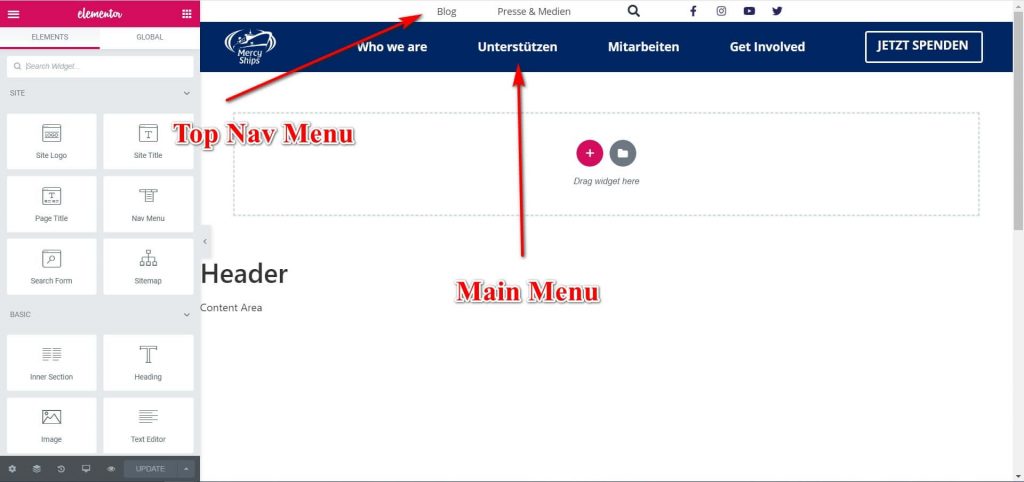
With Top Nav Menu and Main Menu:
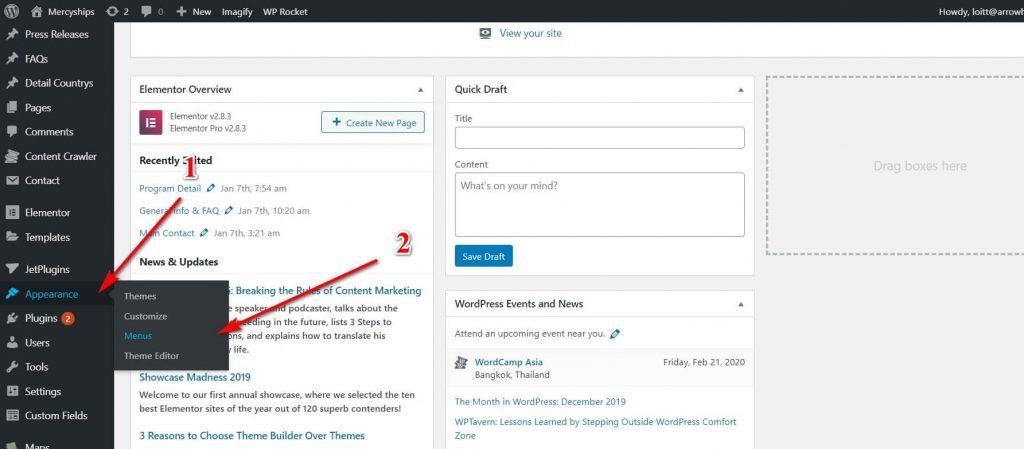
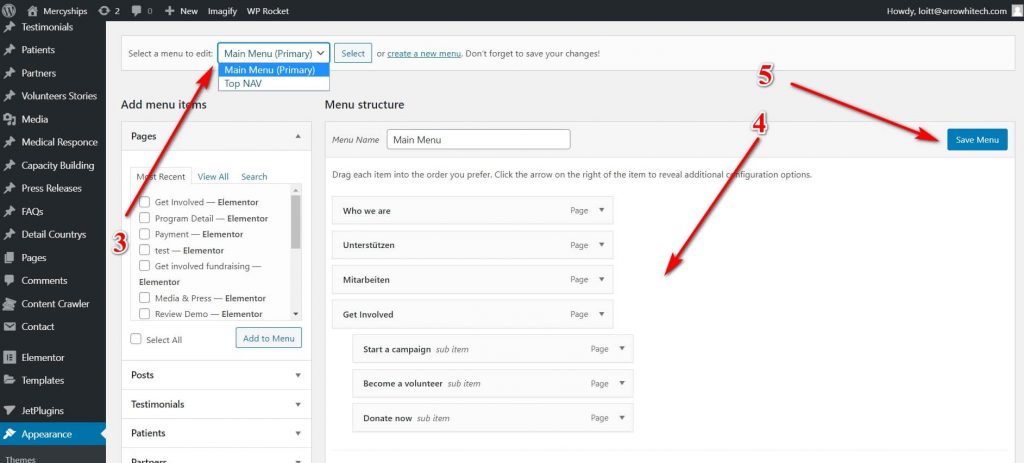
In Admin Page => Apprearance (1) => Menus (2) => Select Menu (3) => Edit Menu (4) => Save (5)
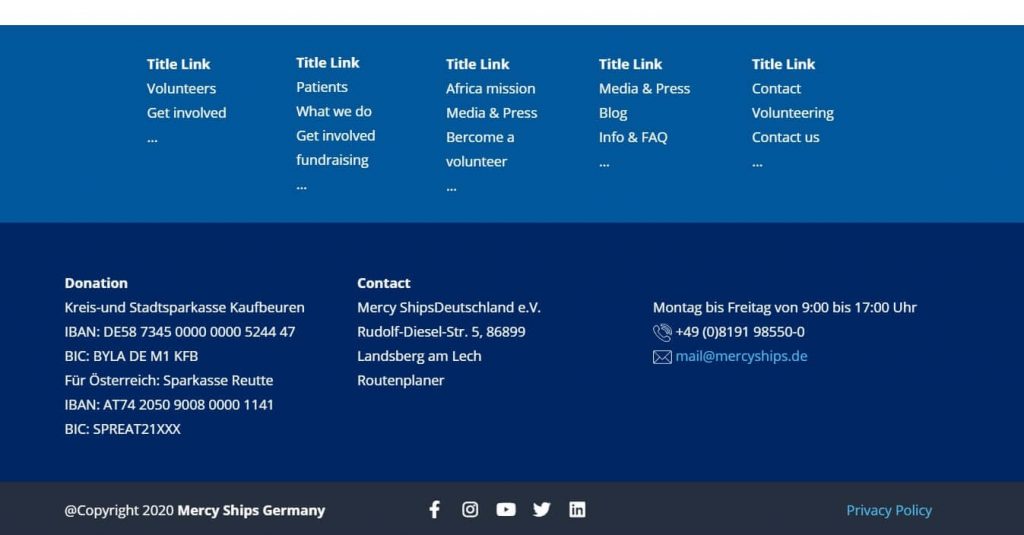
Footer
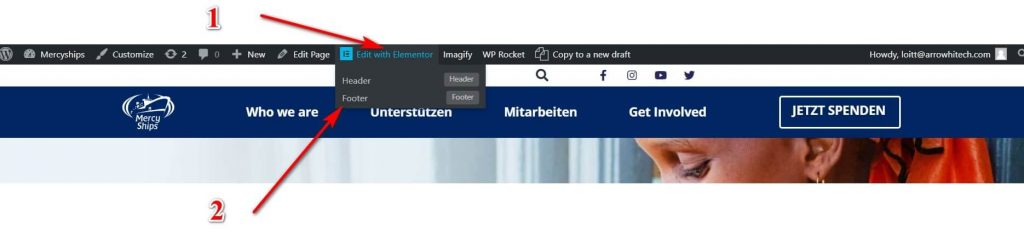
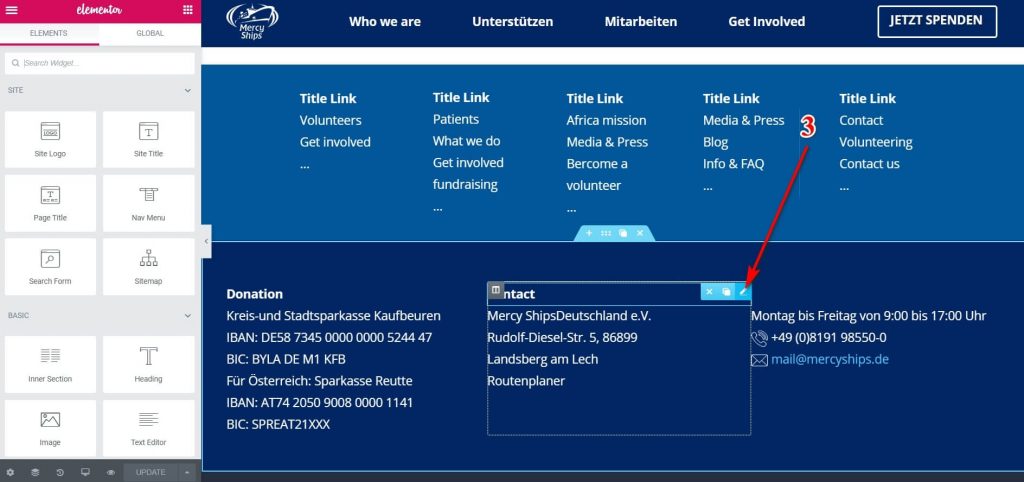
Hover Edit with Elementor (1) => Footer (2) => By Click section want to edit you can easy change (3)
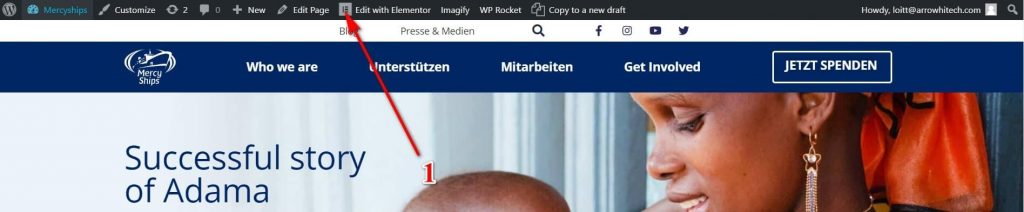
Home Page Content
BANNER
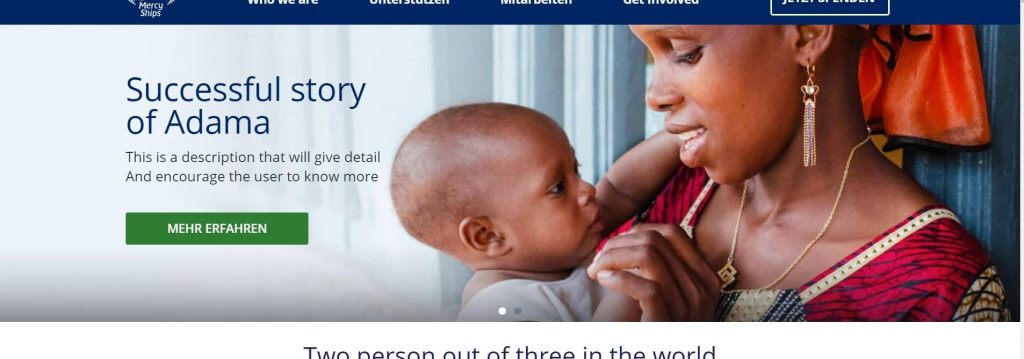
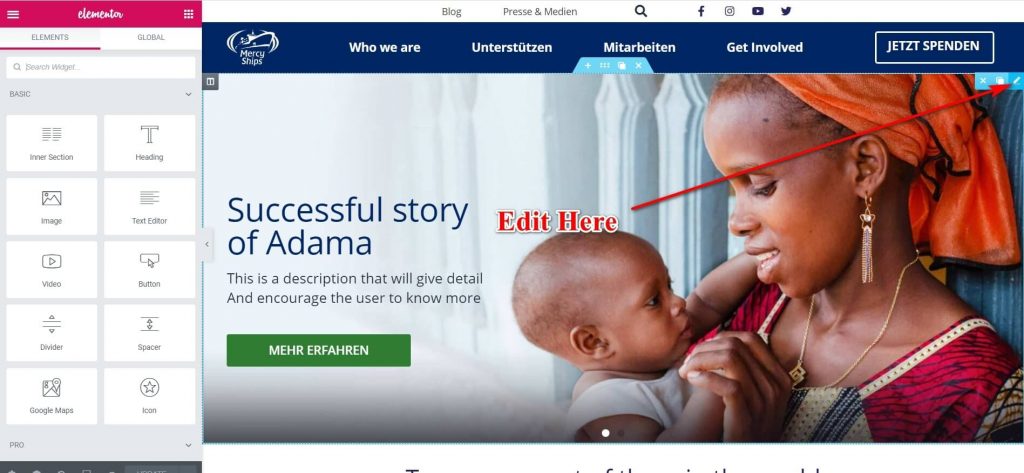
You can read docs here:https://docs.elementor.com/article/93-slides
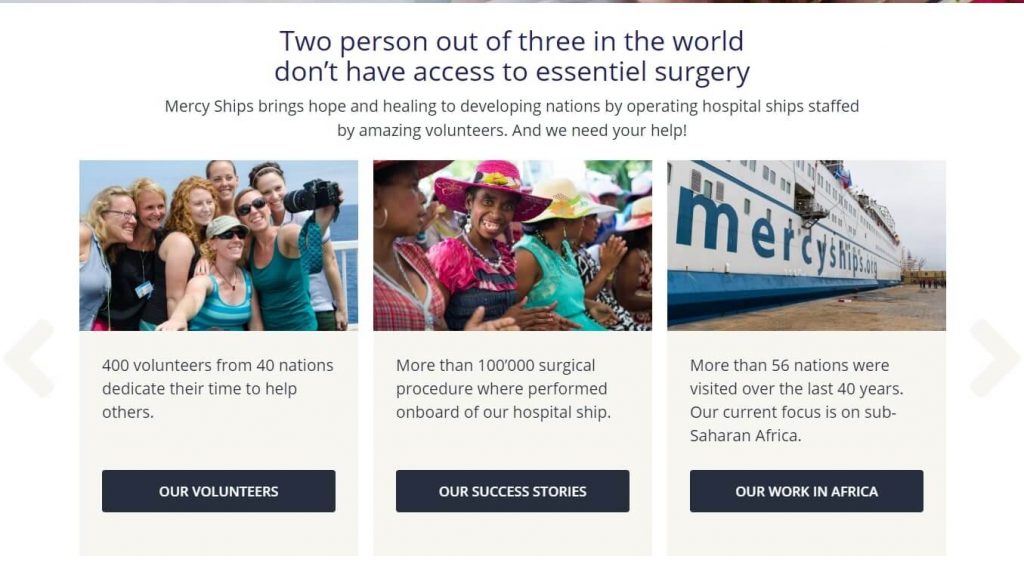
MAIN STORIES
Edit element (1) => Edit Slider (2) => Update (3)
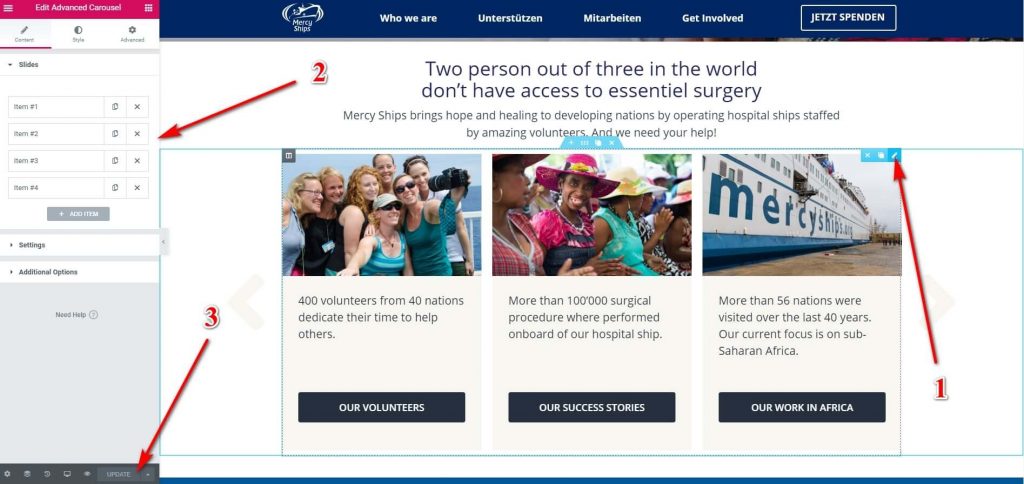
You can readmore here
ENEWS
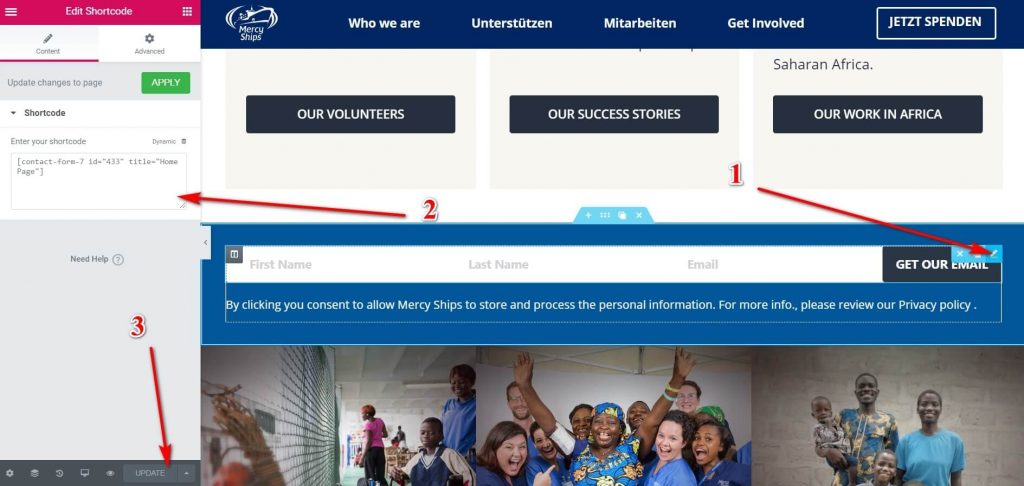
Edit element (1) => Edit Shortcode (Contact Form 7) (2) => Update (3)
PATIENTS
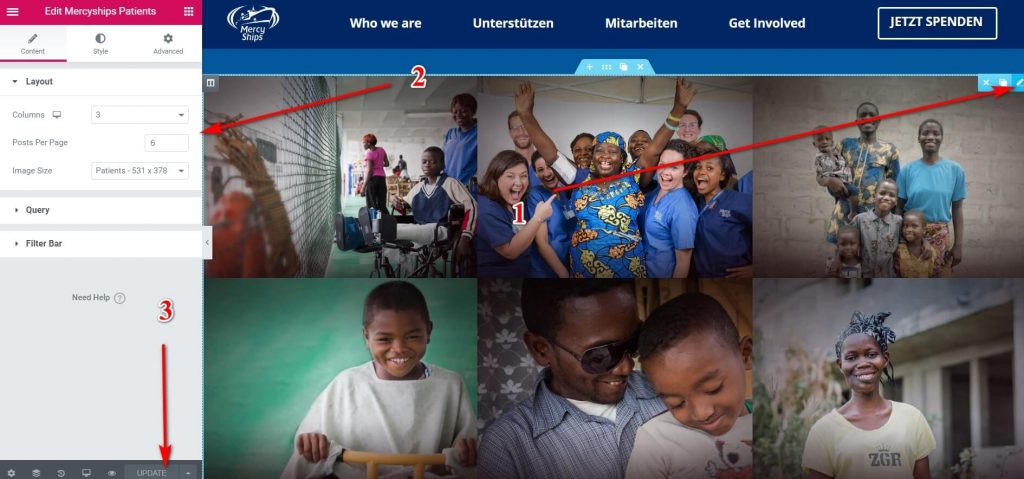
Edit element (1) => Edit Layout, Query… (2) => Update (3)
LATEST NEWS
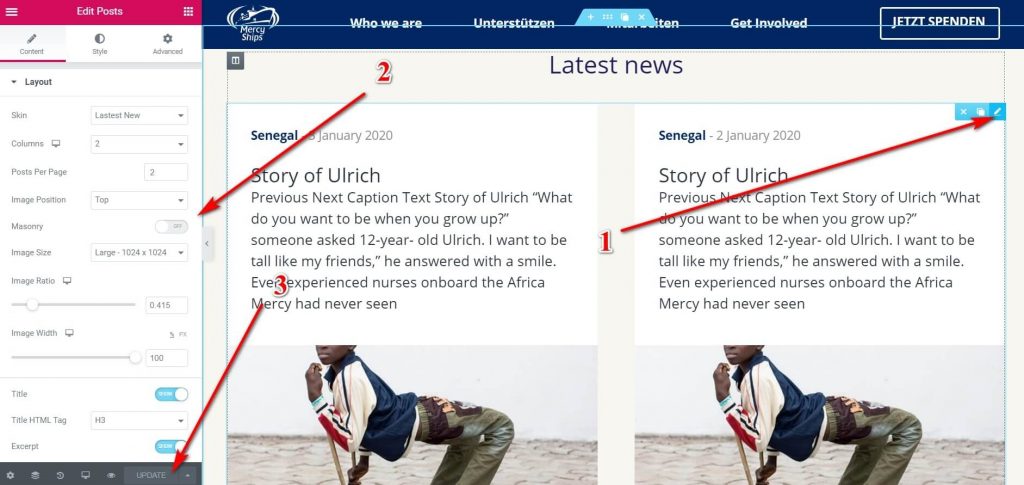
Edit element (1) => Edit Layout, Query… (2) => Update (3)
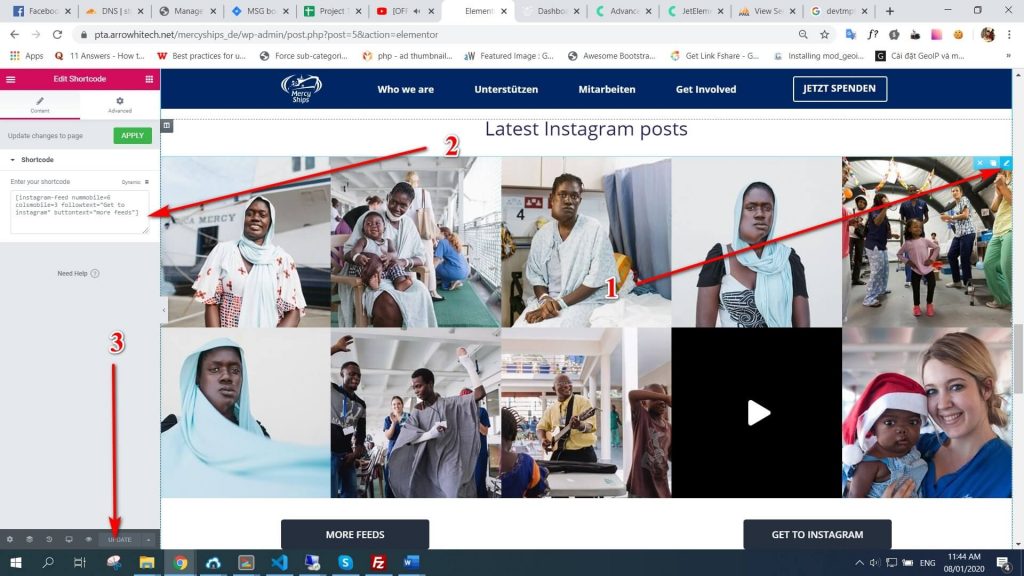
Edit element (1) => Edit Shortcode ( Instagram ) (2)=> Update (3)
TESTIMONIAL
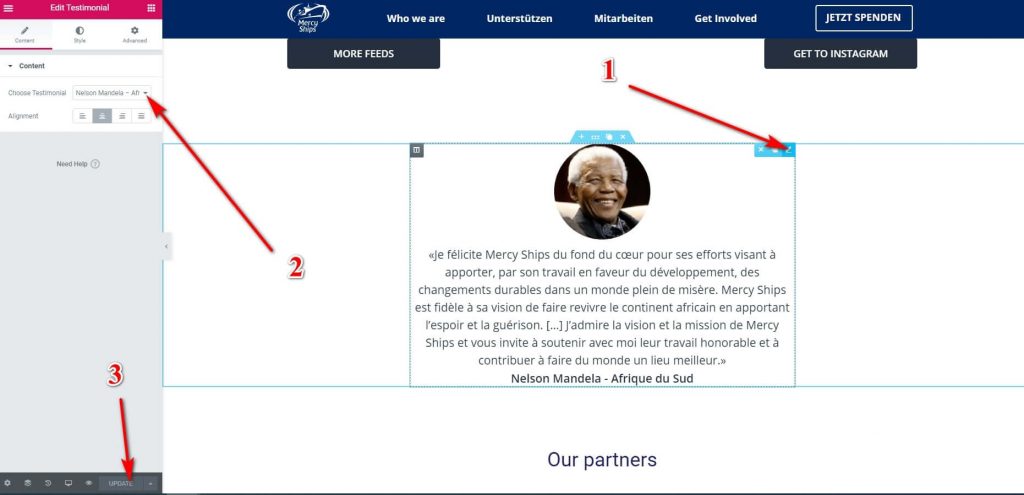
Edit element (1) => Choose Testimonial (2) => Update (3)
PARTNERS
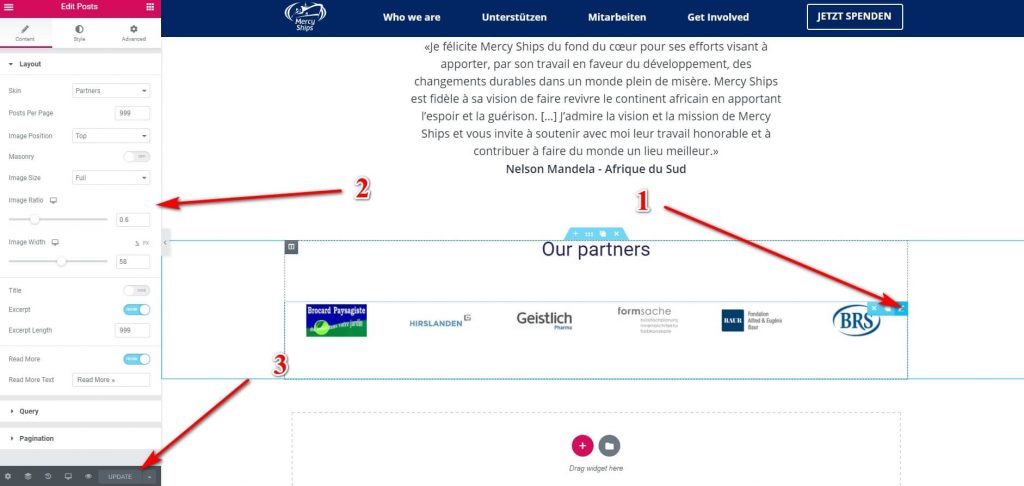
Edit element (1) => Edit Layout, Query… (2) => Update (3)
Info and FAQ Guide
Select page
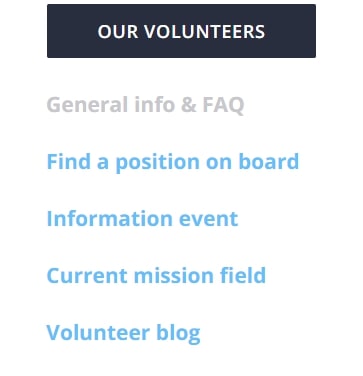
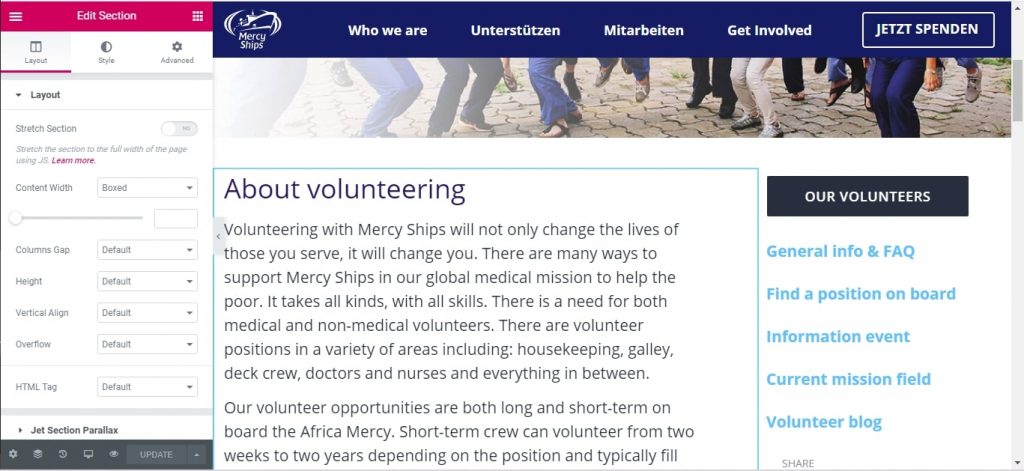
Select “Edit with Elementor”
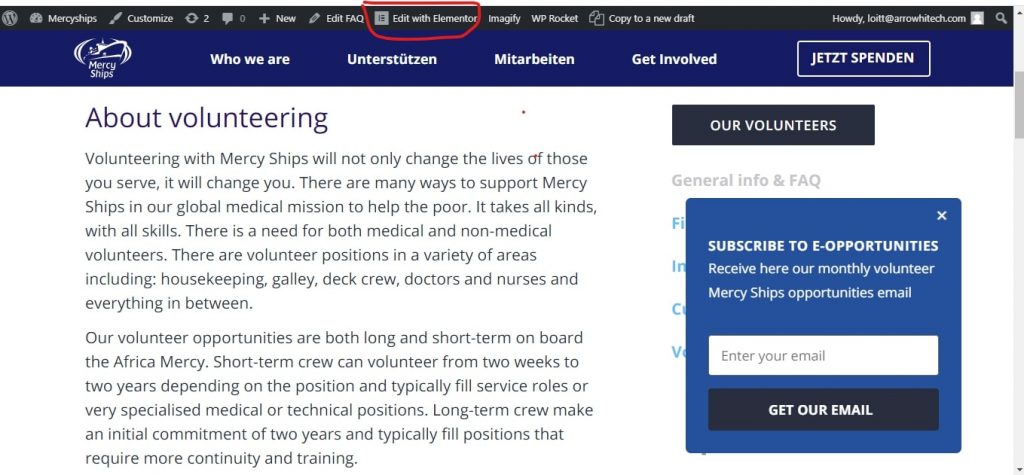
Select and edit content page in left side
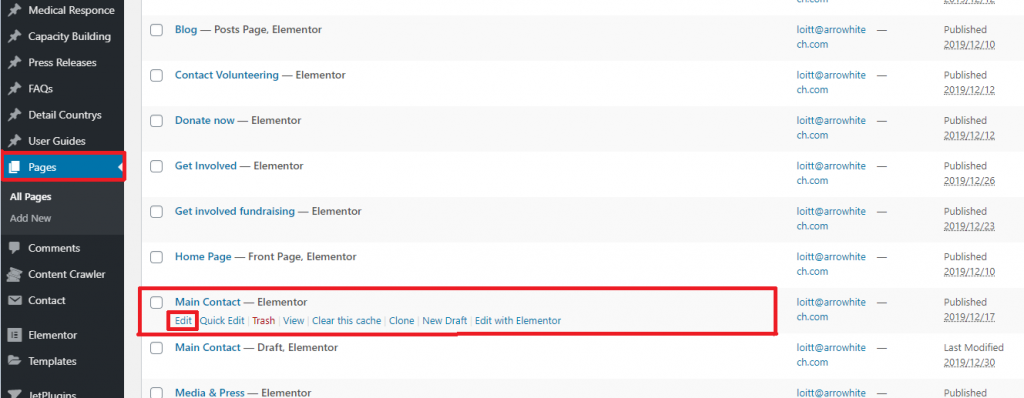
Main Contact Page
Selected Page =>Main Contact => Edit
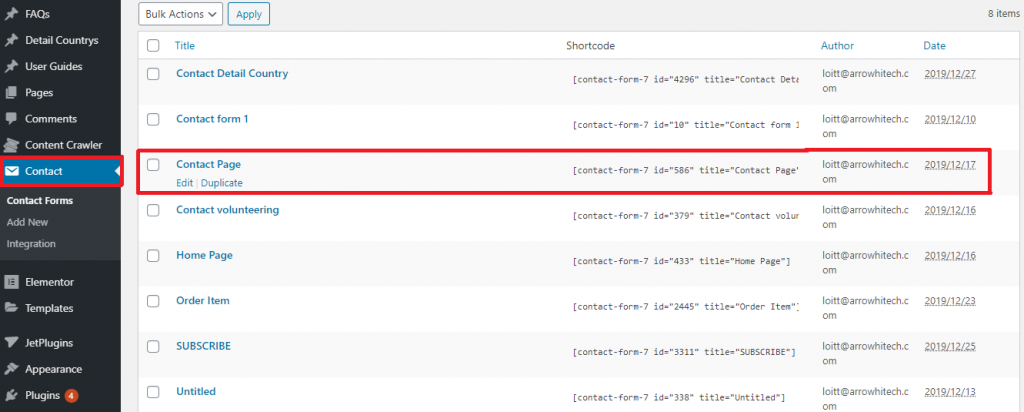
Select Contact => Contact Page =>Edit
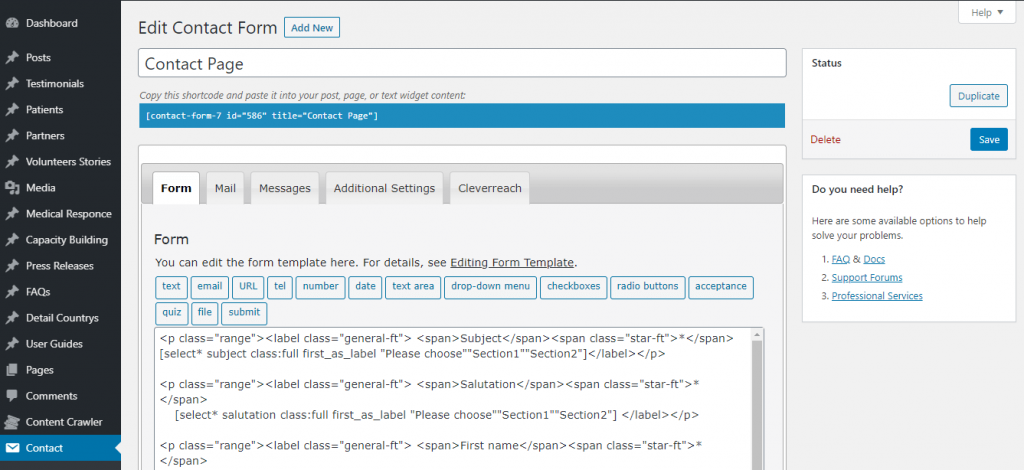
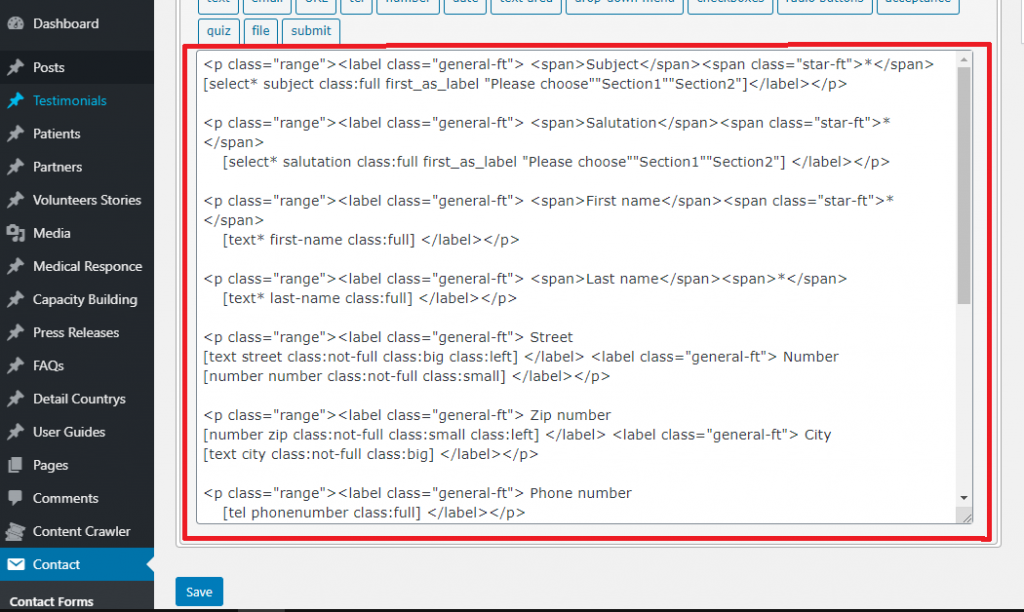
Title Form

Short code

Content Form
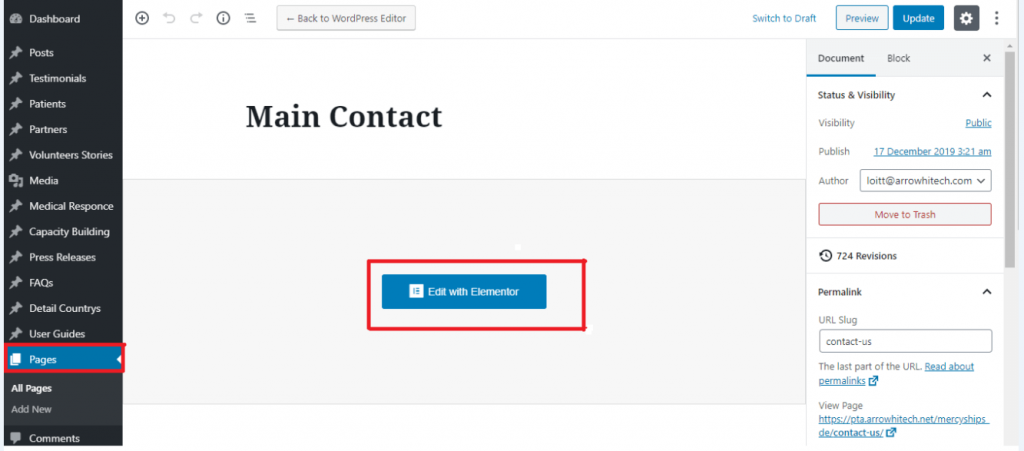
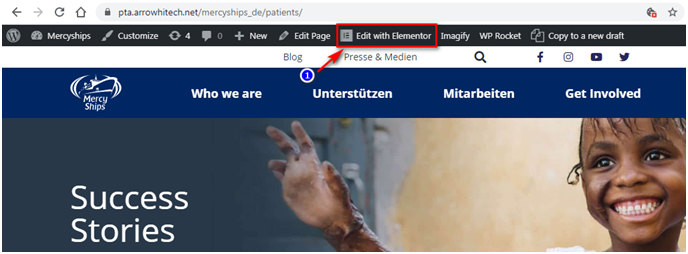
Select => Pages => Edit with Elementor
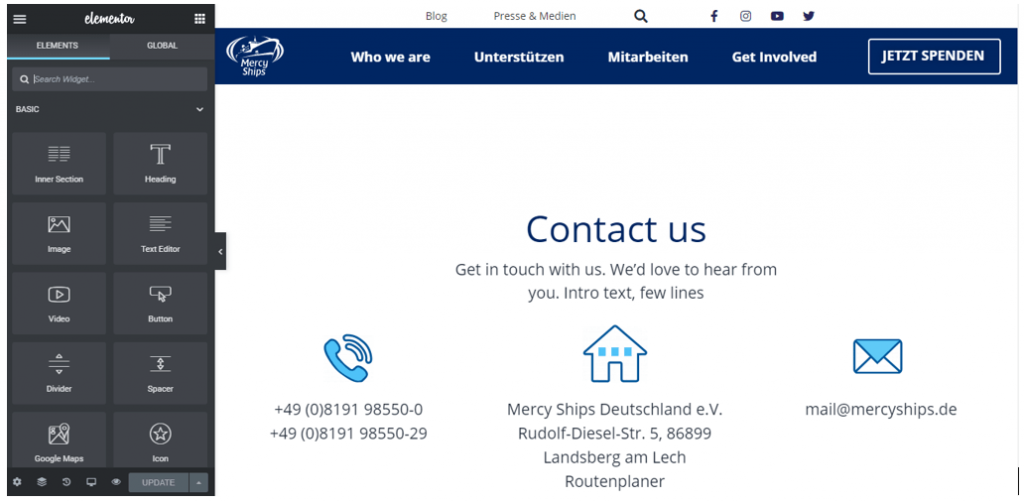
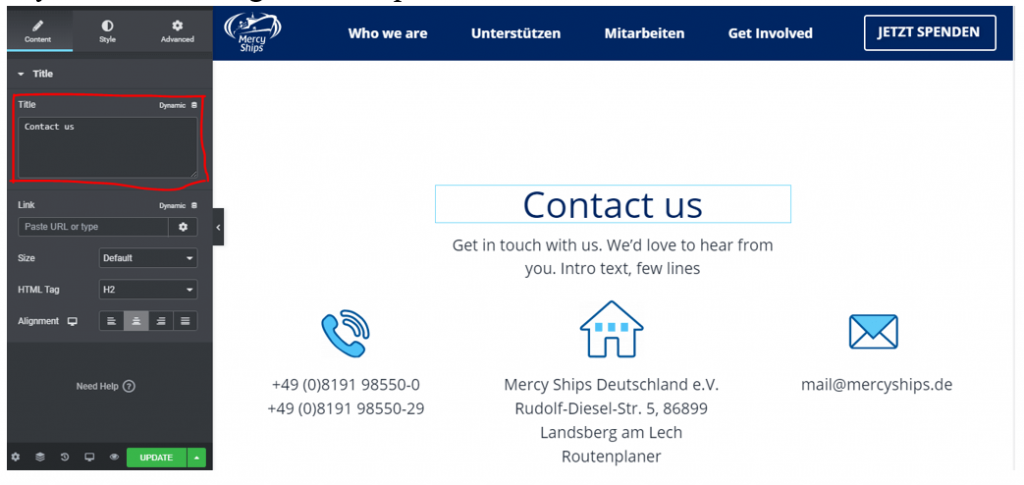
If you want to change the text, please enter here
Scroll down mouse
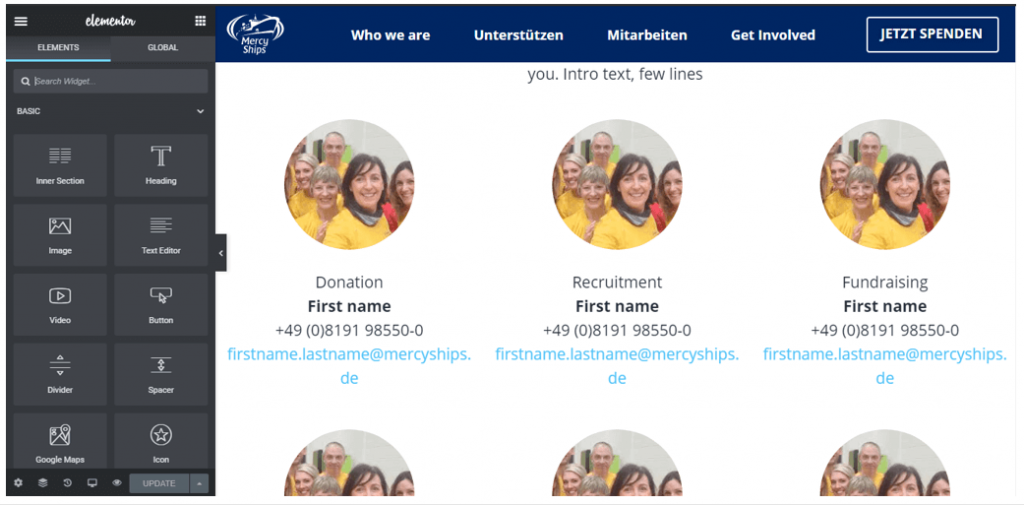
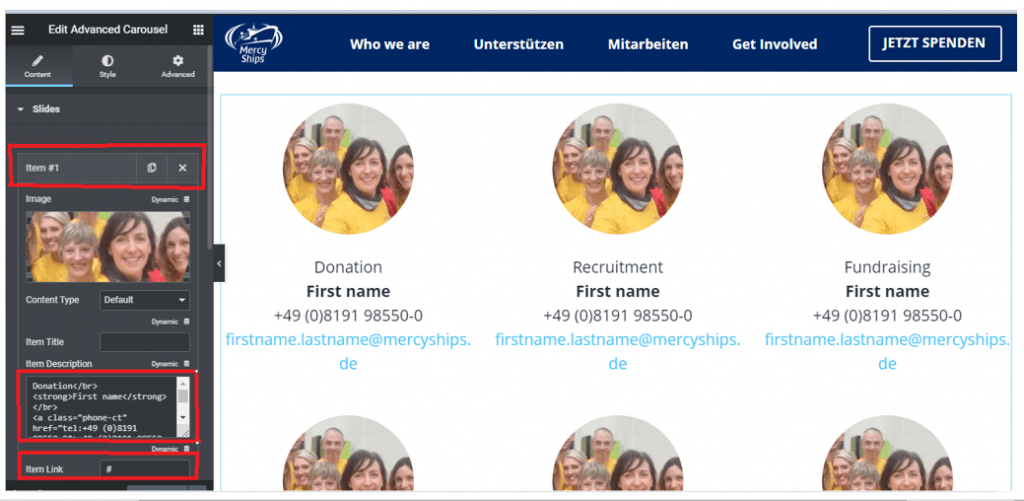
Select Section edit and add or edit content, text +link
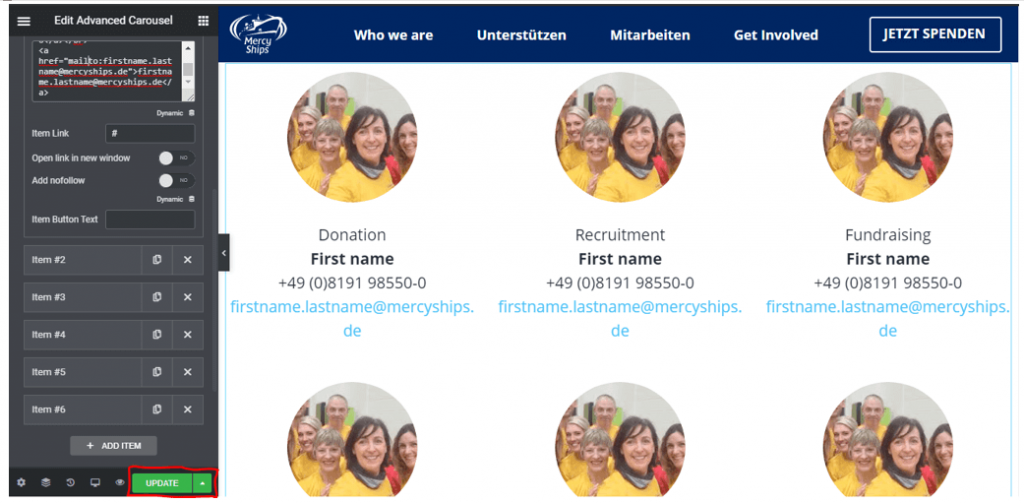
Finally click Update
Patients Guide
BANNER
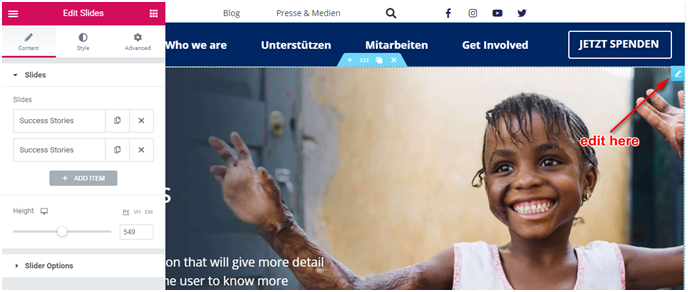
You can read docs here:https://docs.elementor.com/article/93-slides
VIDEO BOX
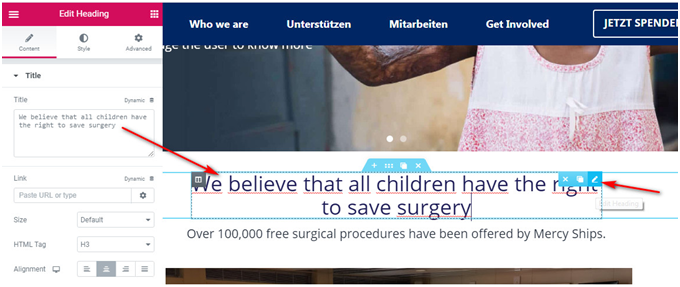
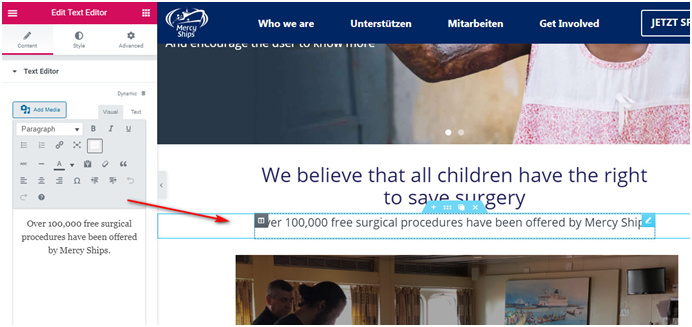
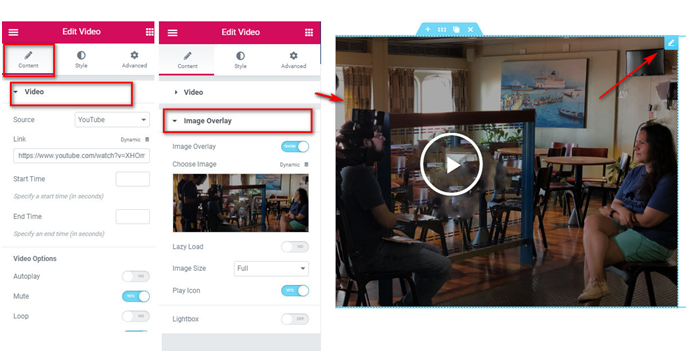
LATEST STORIES
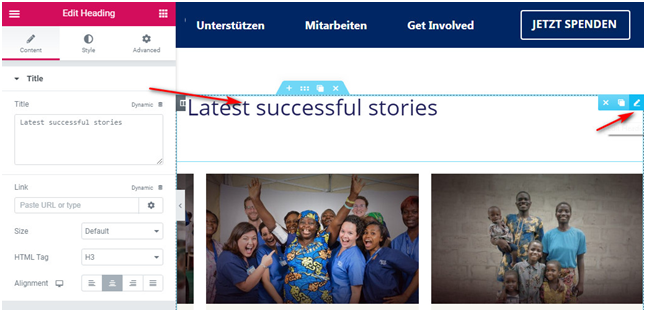
Edit element => Edit Layout, Query… => Update
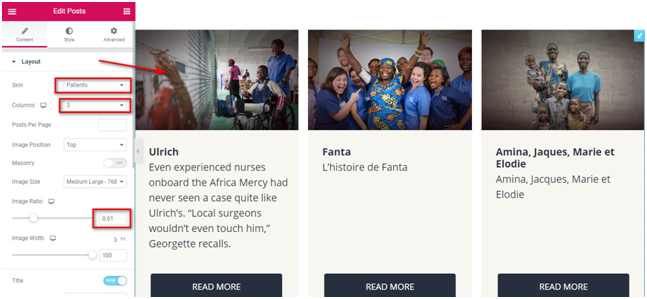
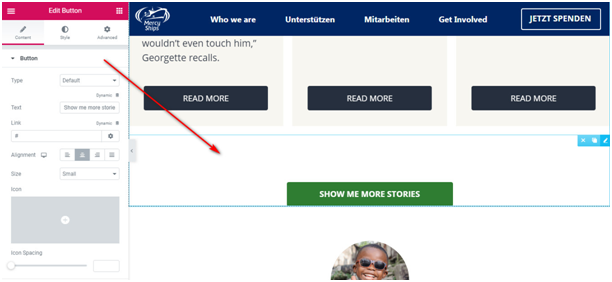
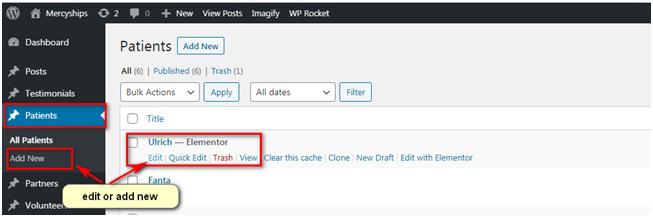
* edit and add new patient story
TESTIMONIAL
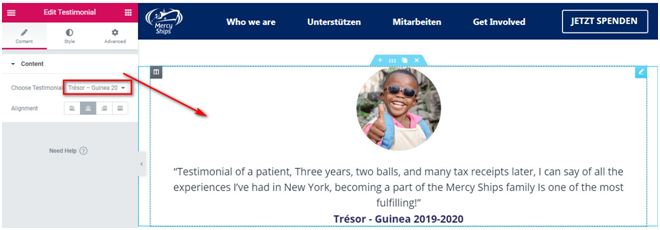
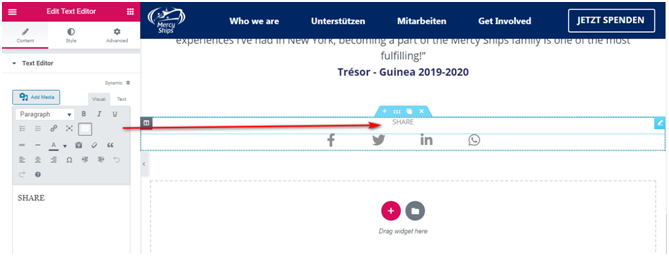
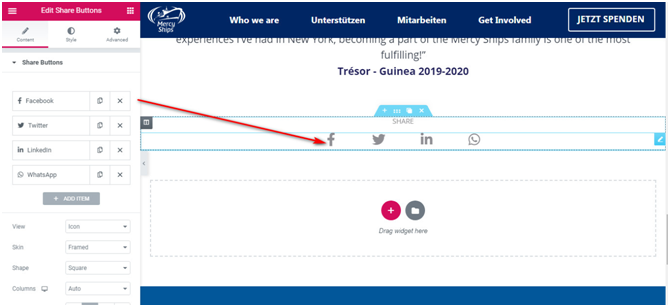
SOCIALS SHARE
Payment
Edit with elementor (1) => Edit element (2) => Update (3)
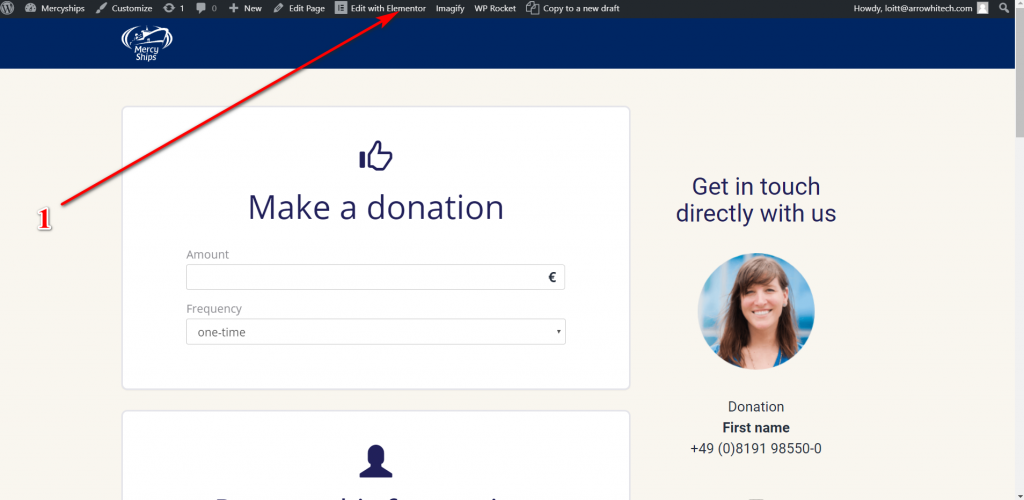
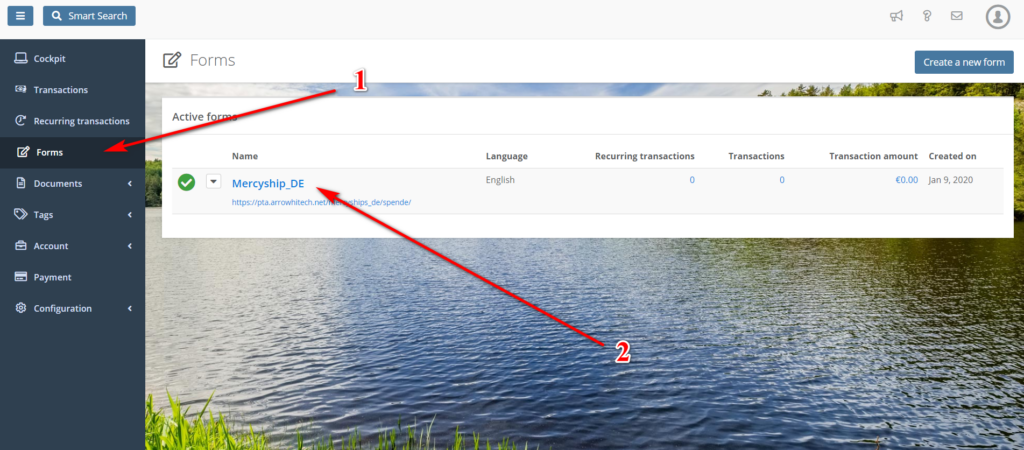
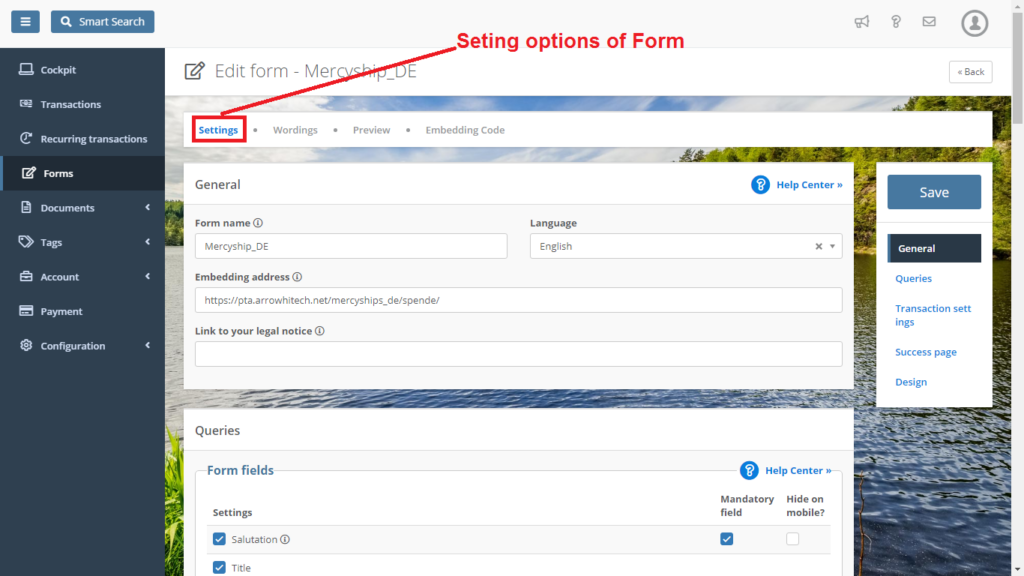
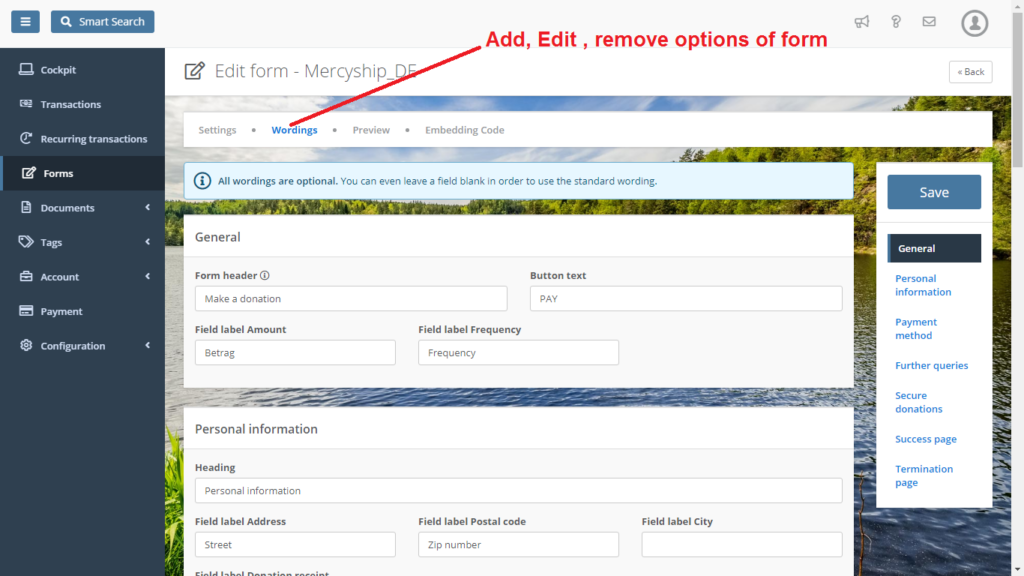
To get Payment Form script
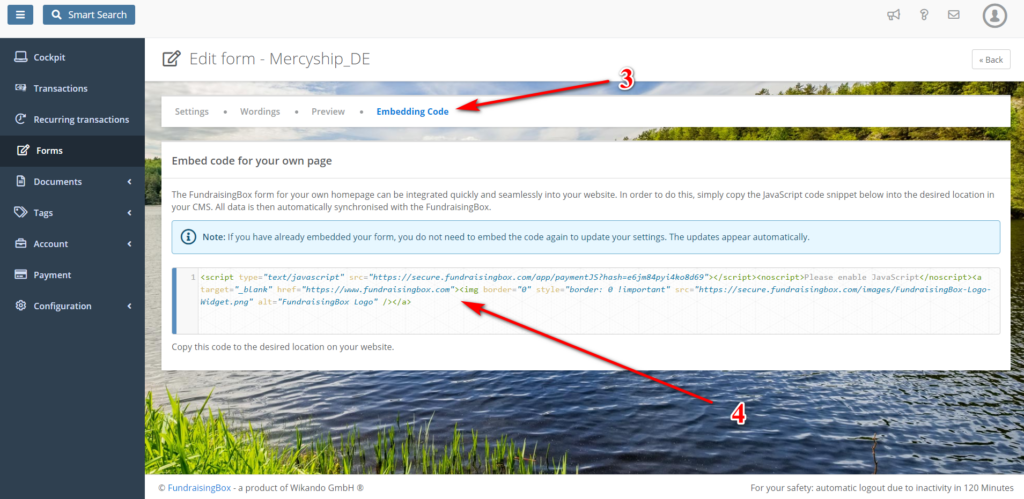
Presse edit
BANNER
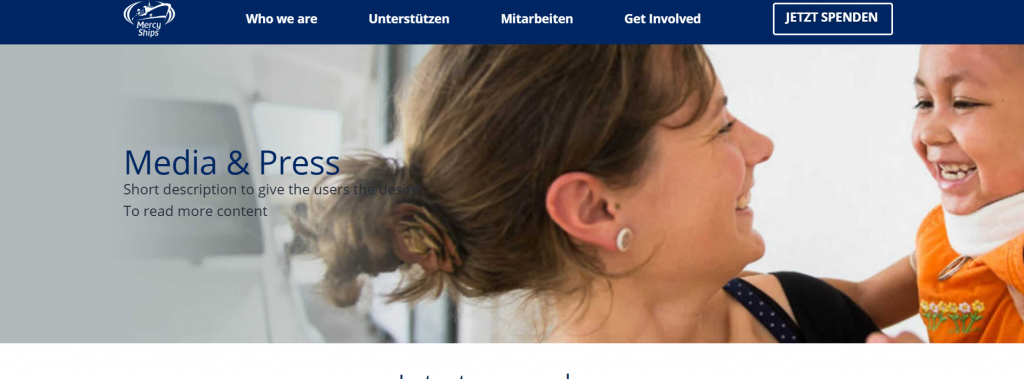
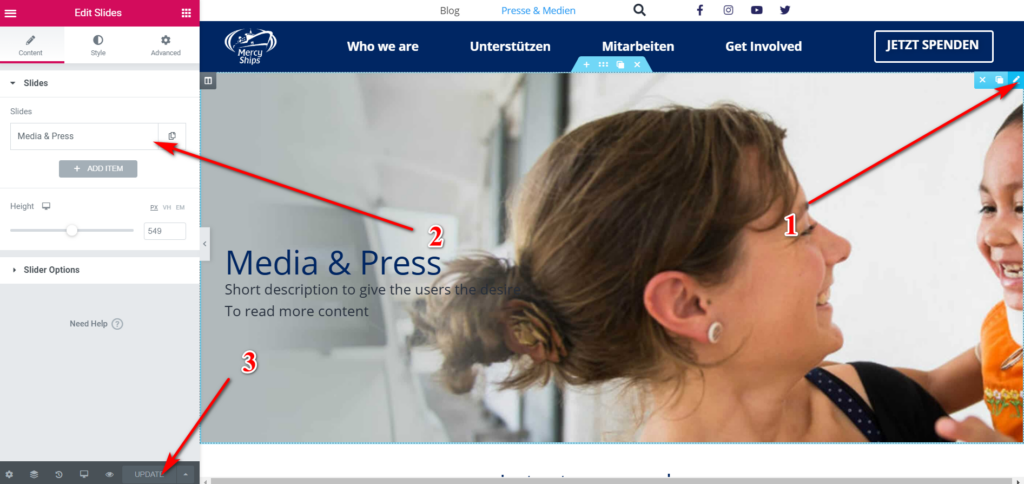
Edit element (1) => Edit Banner (2) => Update (3)
Latest Press
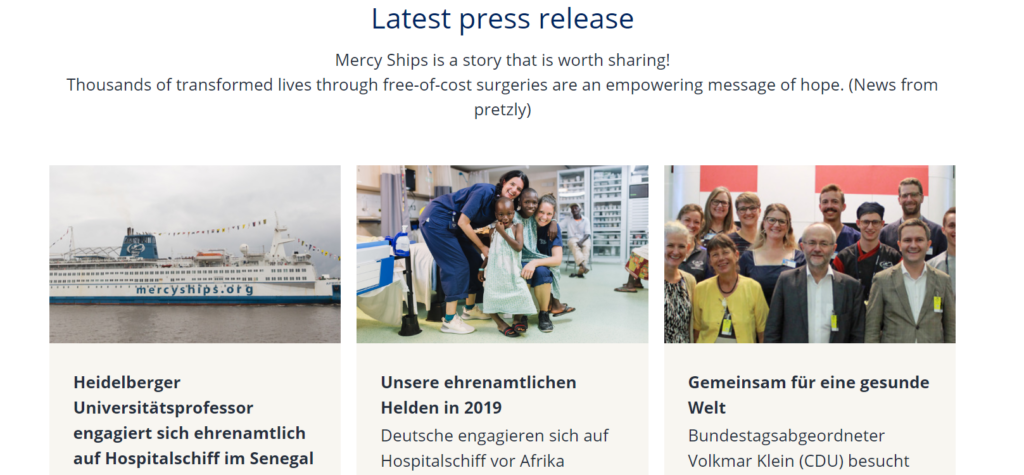
Edit element (1) => Edit Layout, Query… (2) => Update (3)
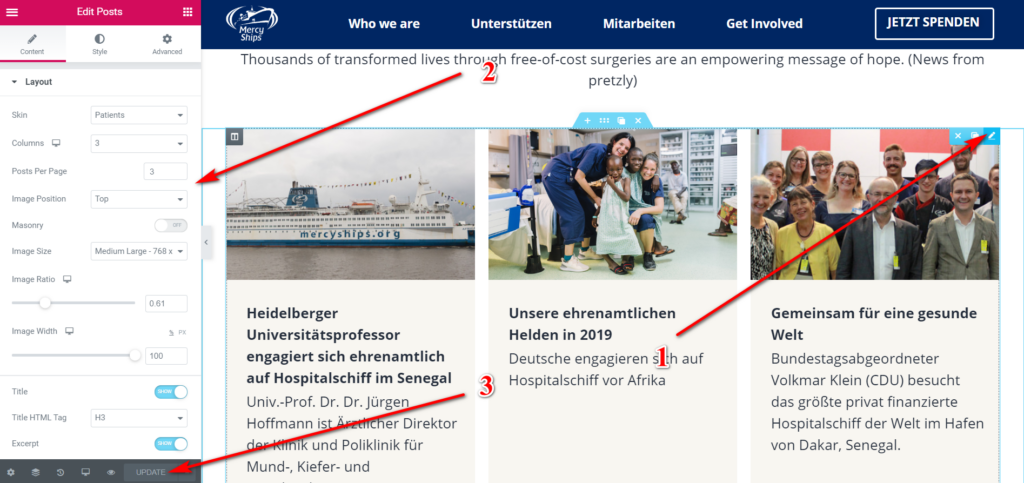
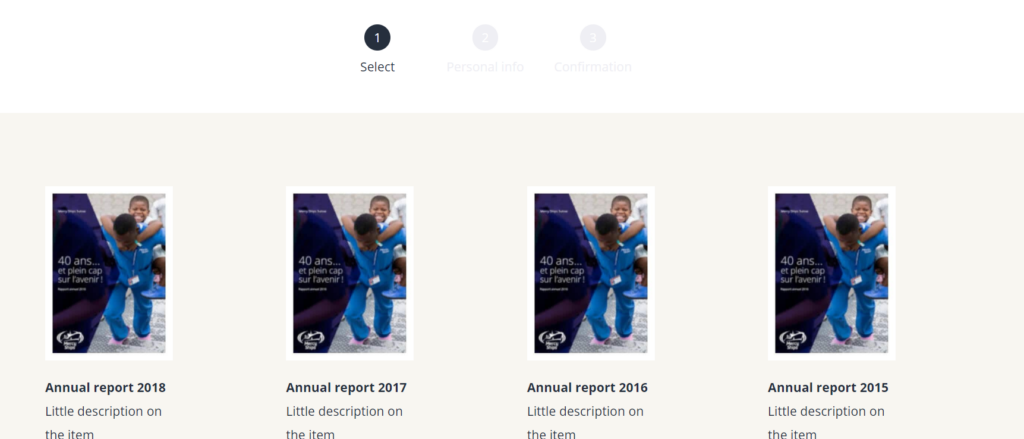
Order Free
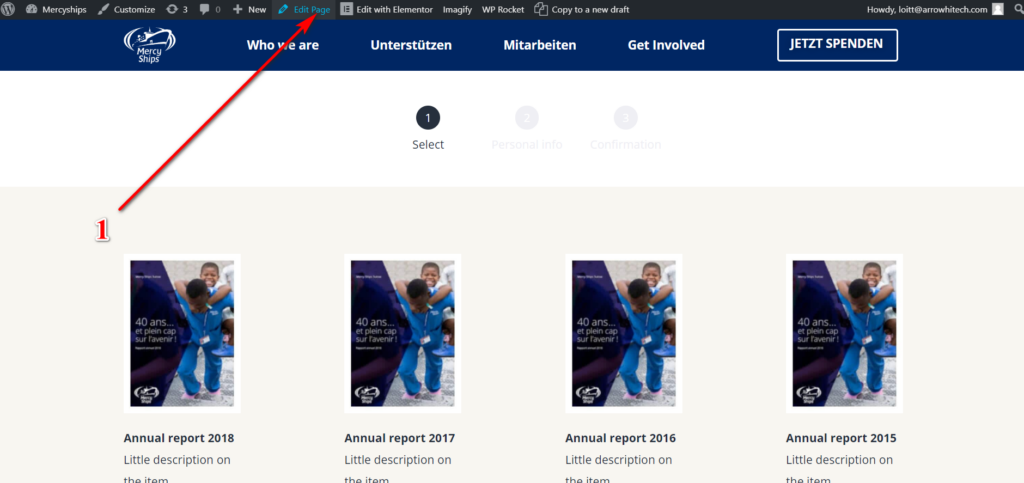
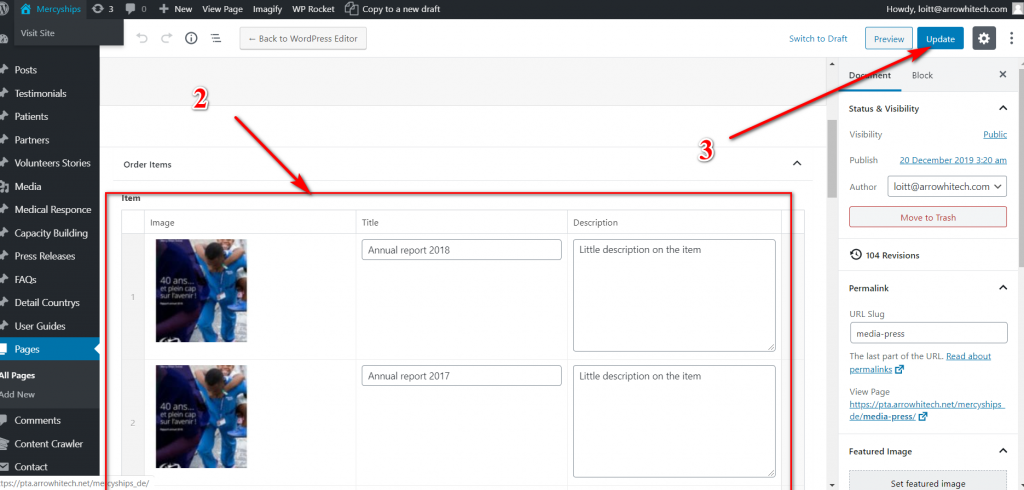
Edit Page (1) => Item Order (Step 1) (2) => Update (3)
Edit for Step 1
Edit for Step 2
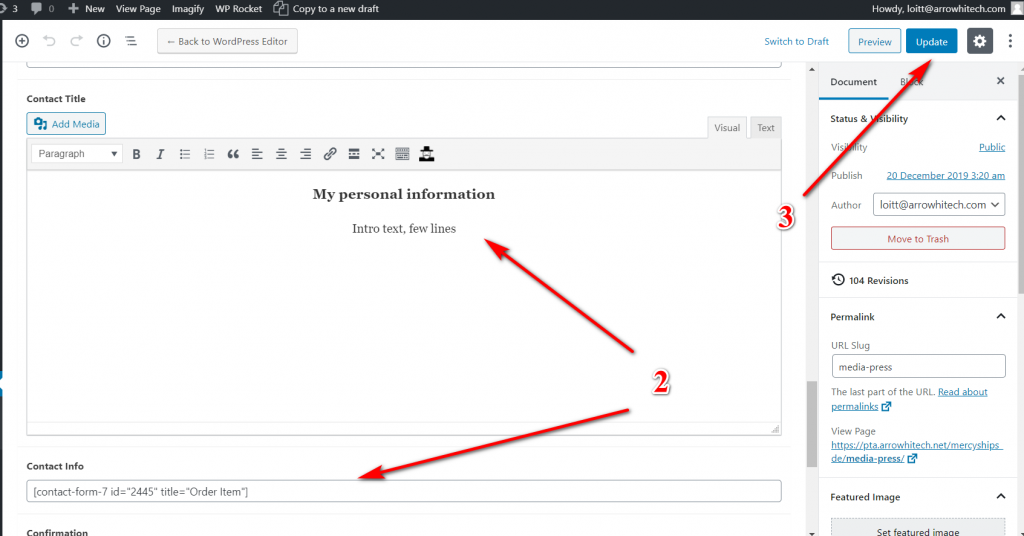
Edit for Step 3
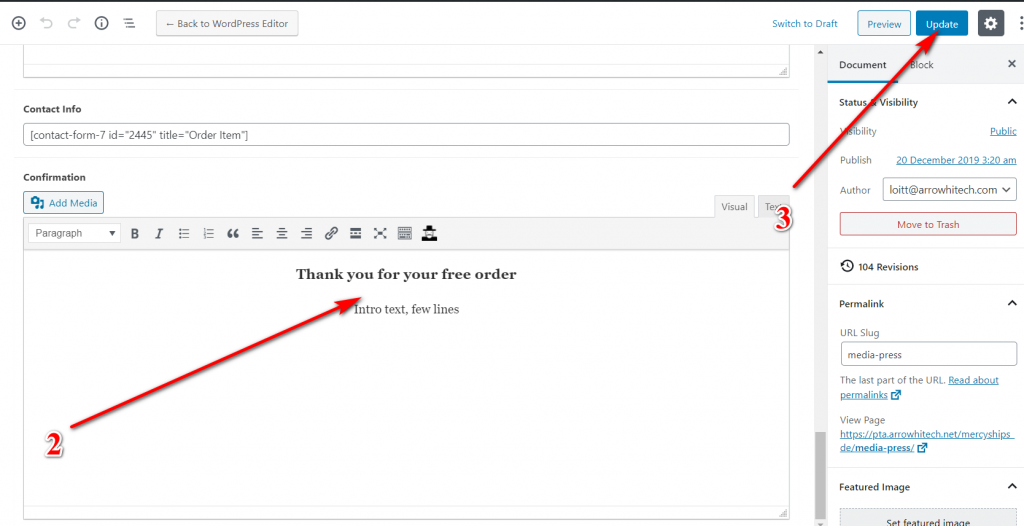
Program Detail
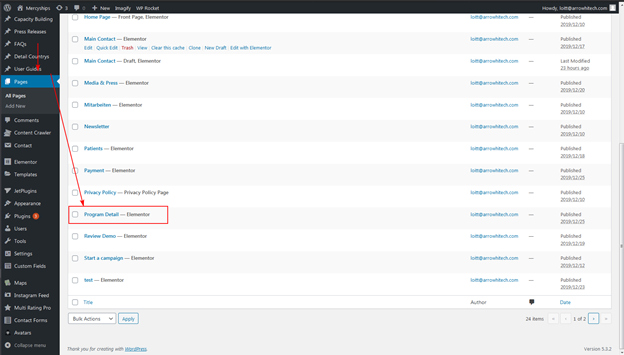
Go to Page -> Program Detail
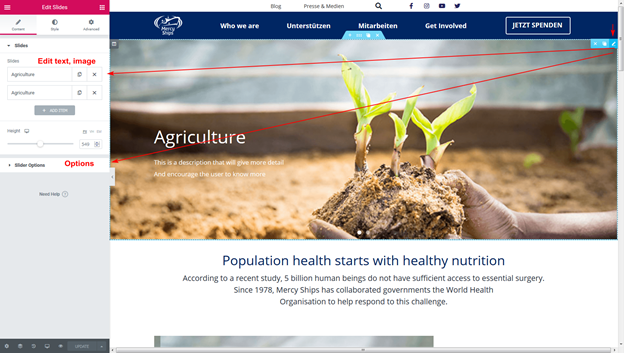
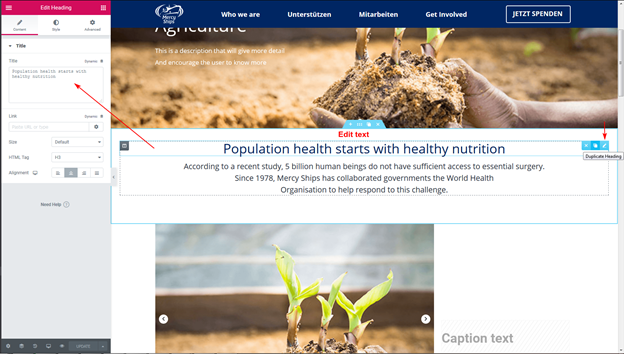
Edit second slide
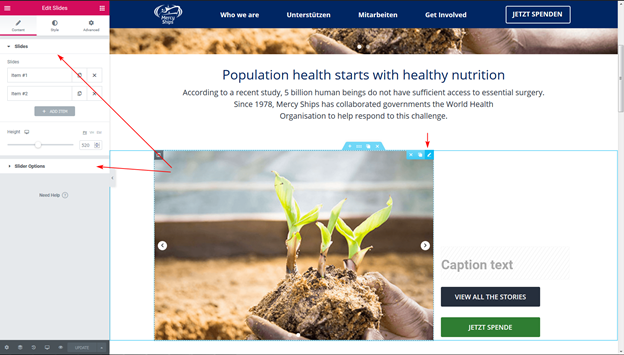
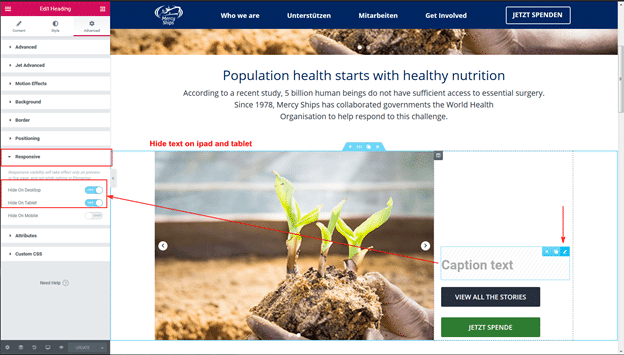
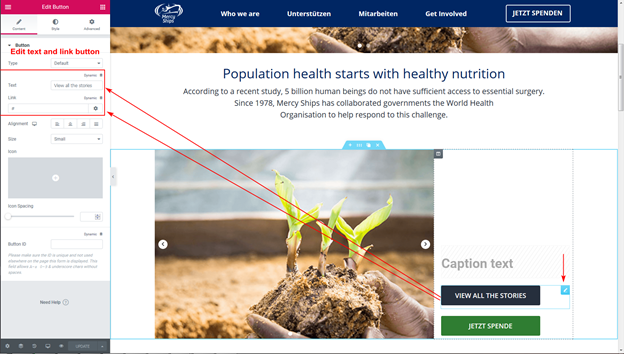
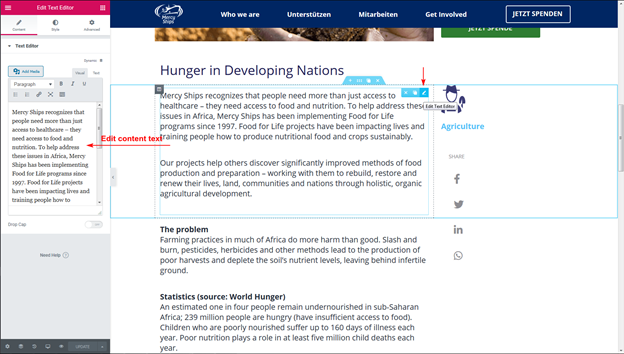
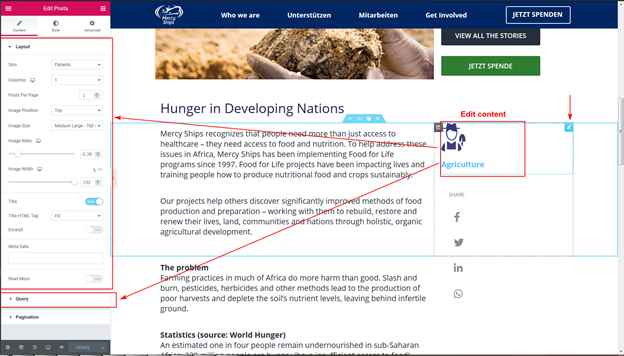
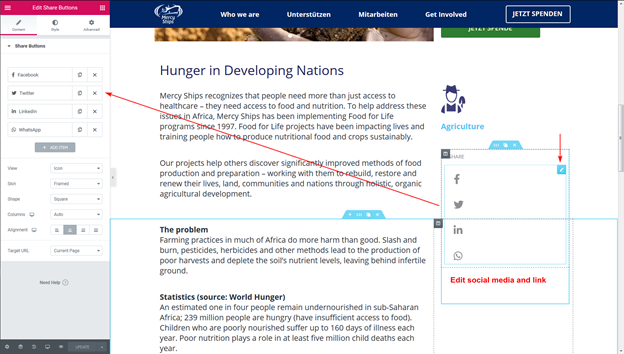
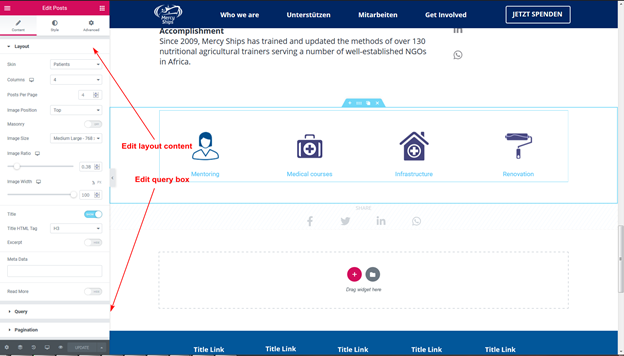
Rating
You can Create Rating Blocs here
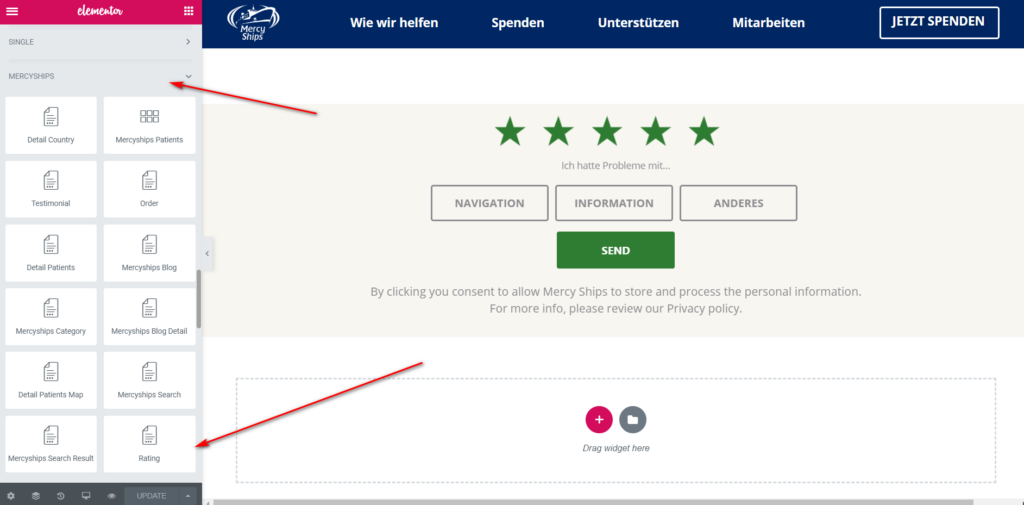
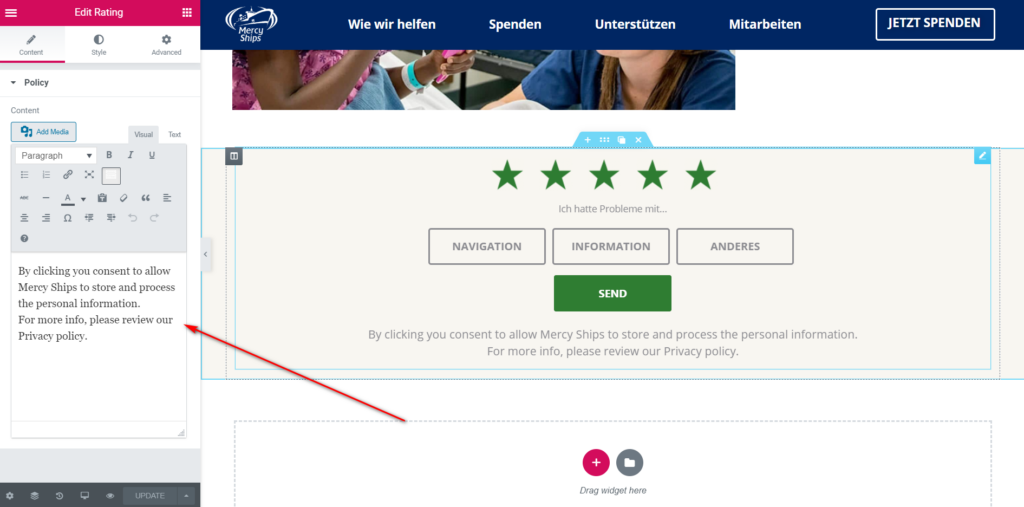
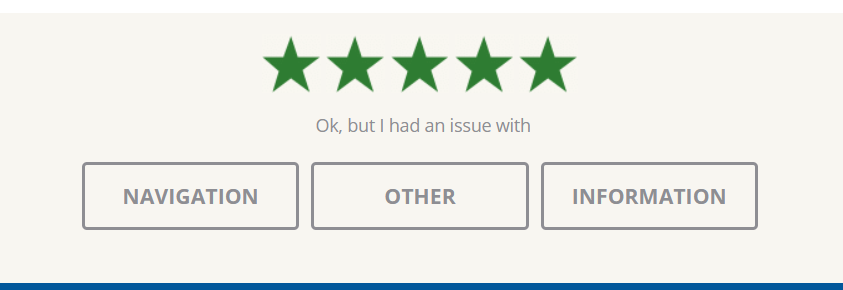
you can read here: https://multiratingpro.com/documentation/getting-started
To manager rating
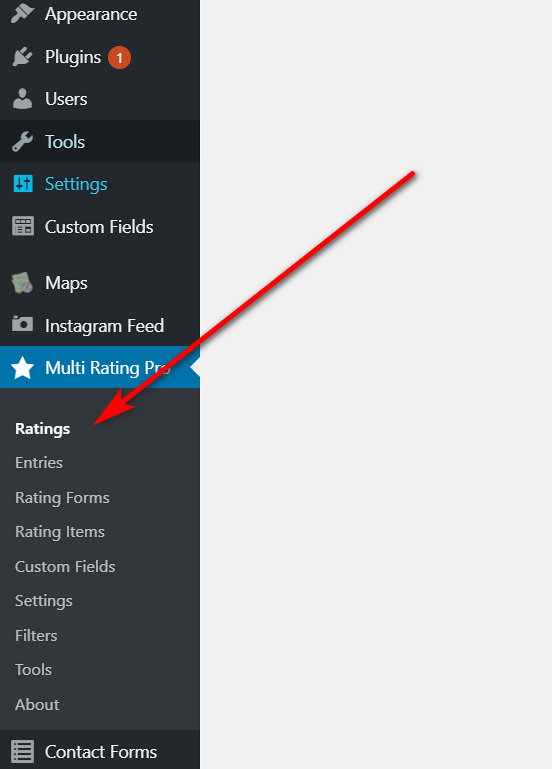
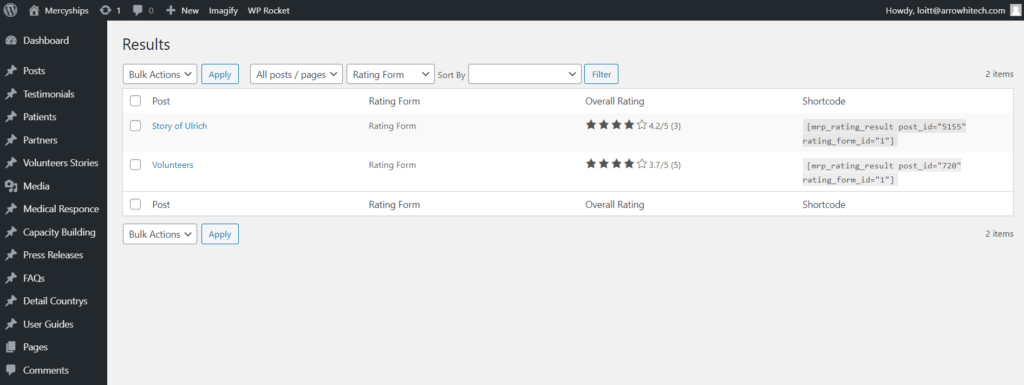
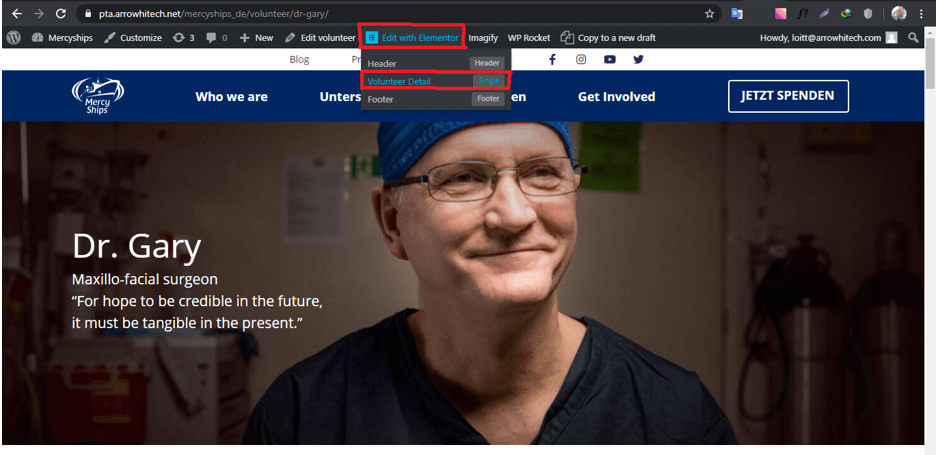
Volunteer Detail Guide
Select => Edit with Elementor => Volunteer Detail
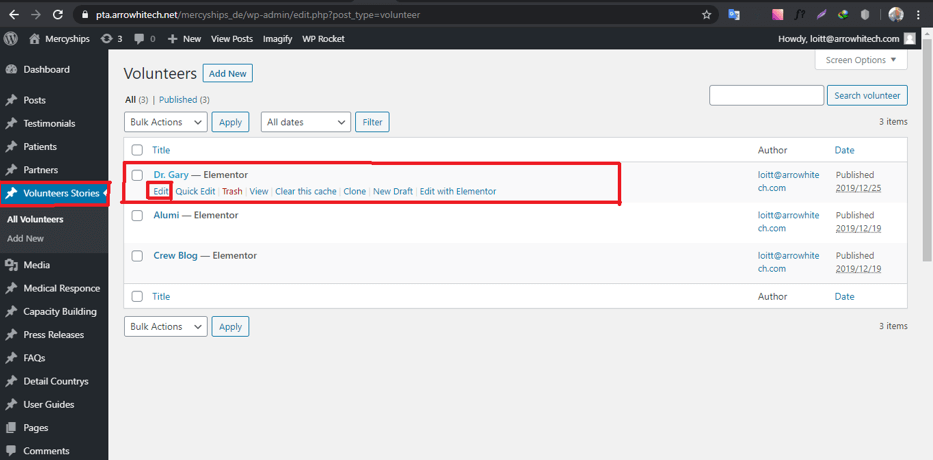
Select => Volunteer Stories =>Edit
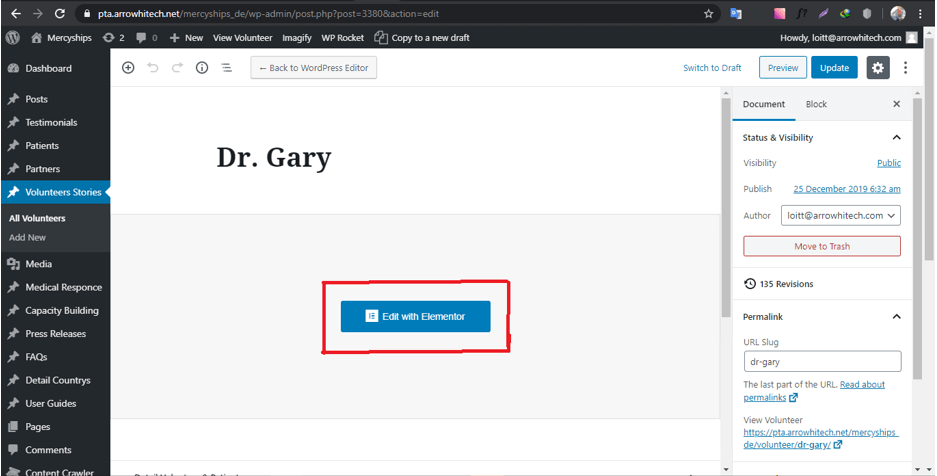
Select => Volunteer Stories =>Edit => Edit with Elementor
Edit here Banner

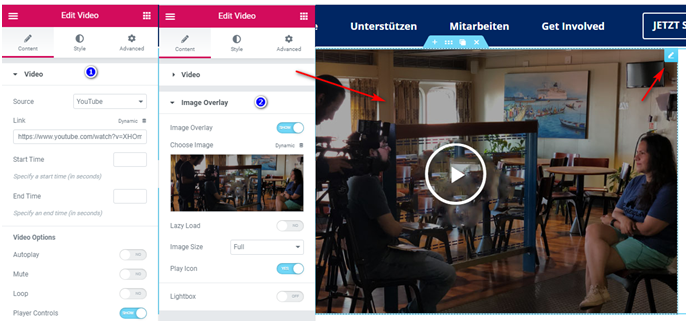
Edit Video
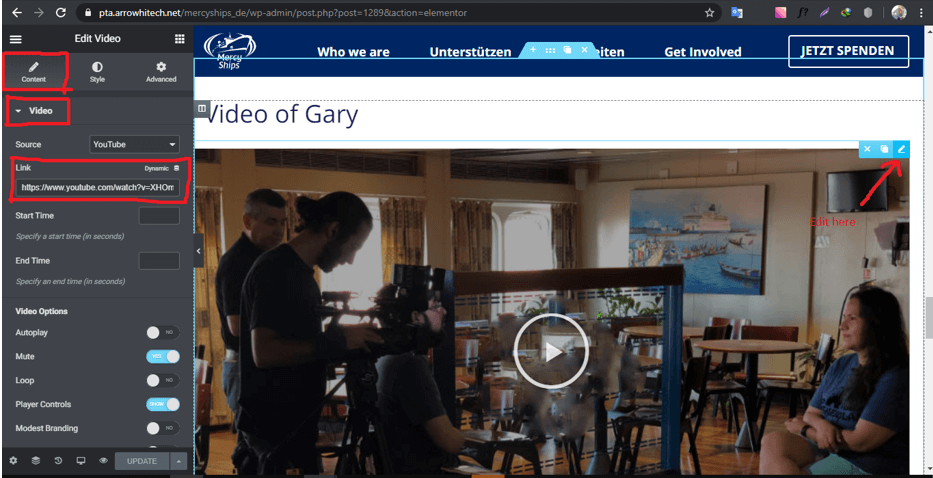
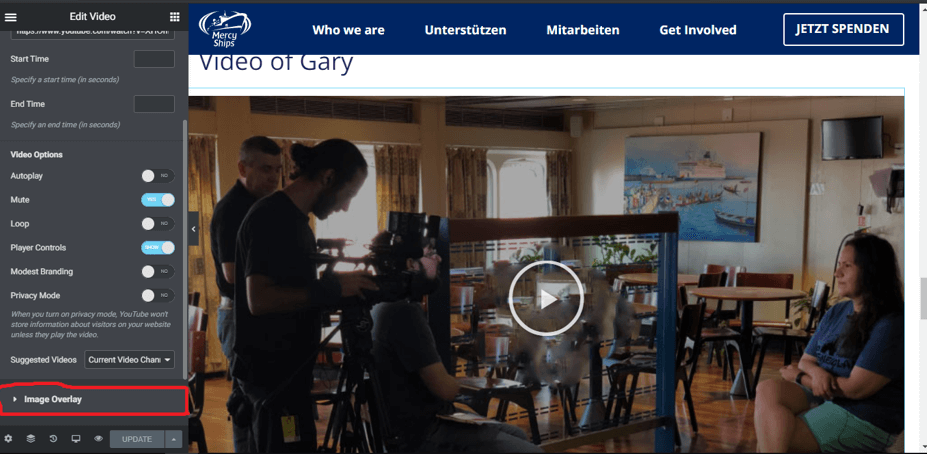
Select Image Overlay
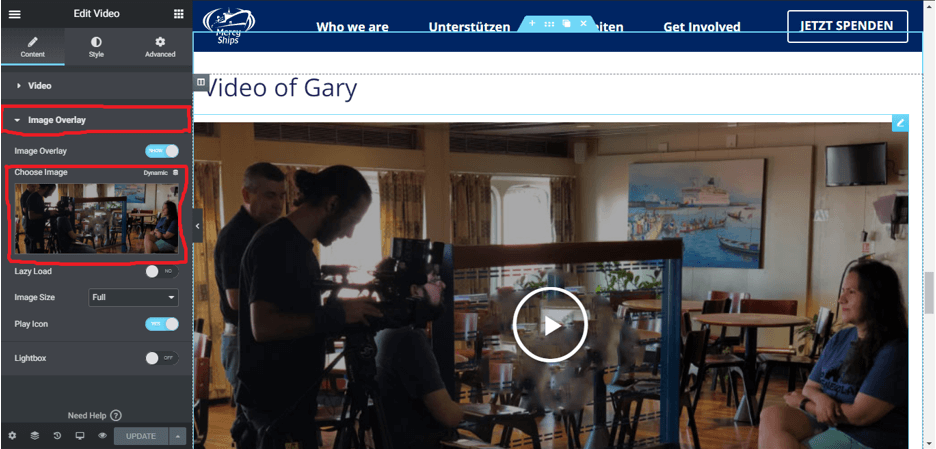
Select Image Overlay => Edit Image
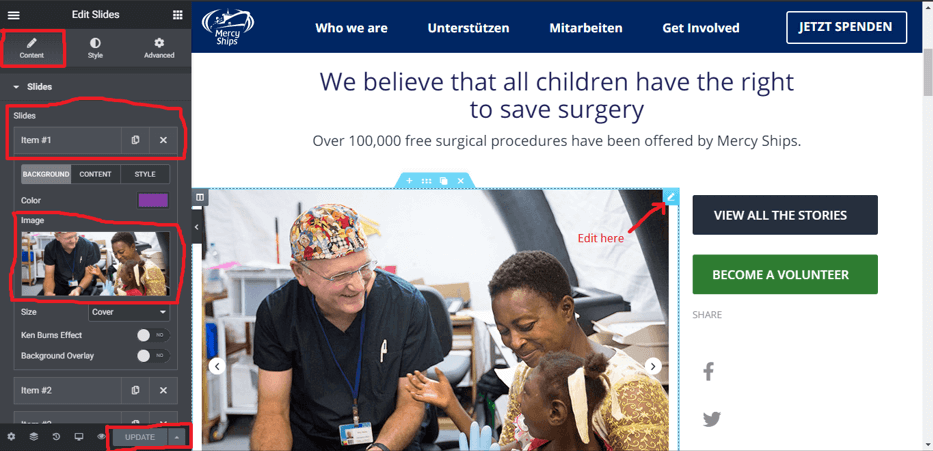
Add slide+ Edit slide
Edit text
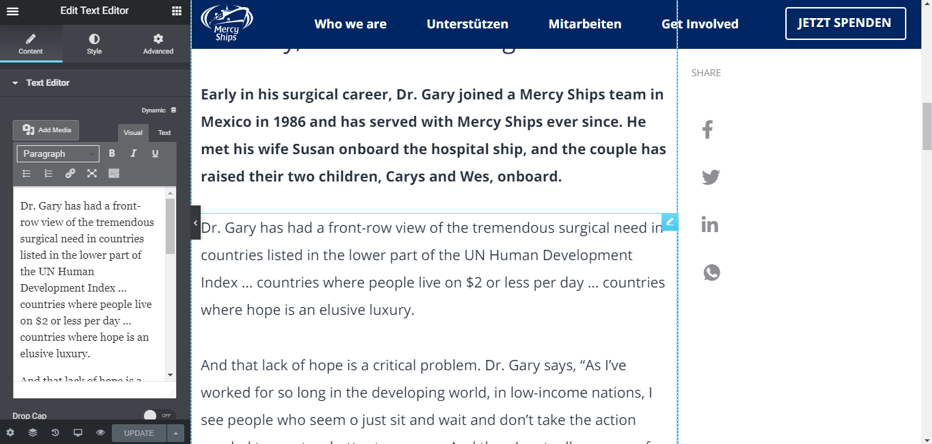
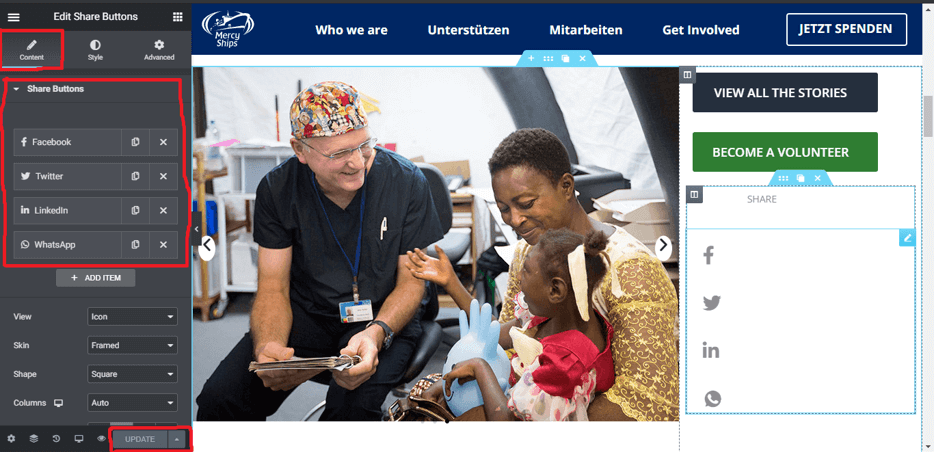
Socials Share + Edit Share
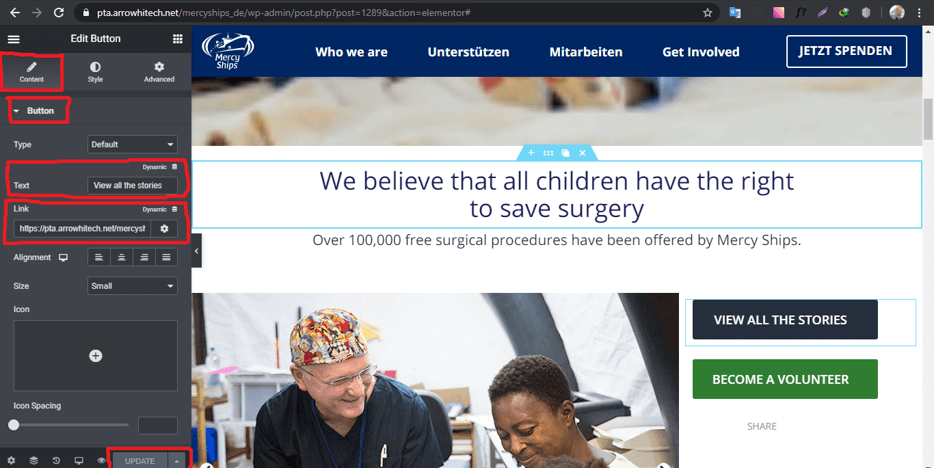
Edit Button + Edit Title + Edit link
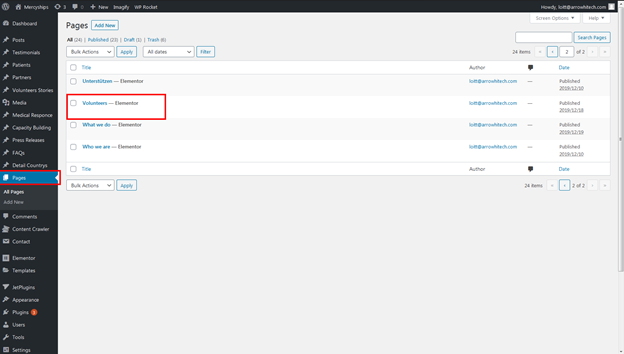
Volunteers
First go: Page -> Volunteers – > Edit with elementor
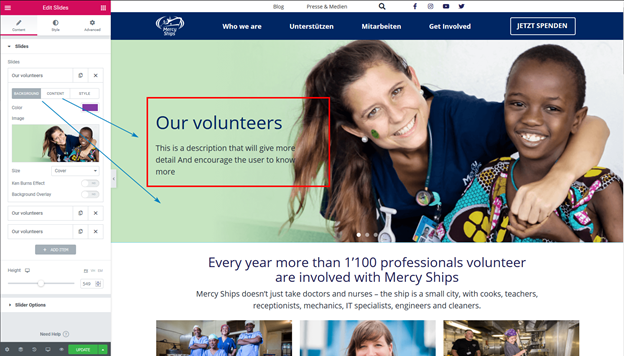
Change banner:
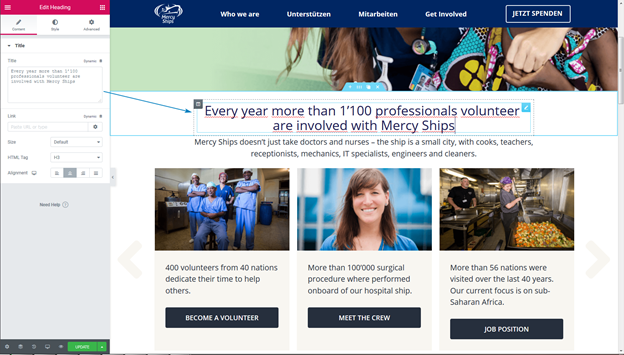
Change Title Text
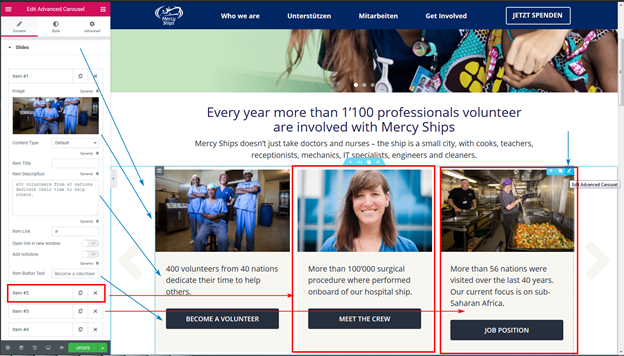
Change Slide content box:
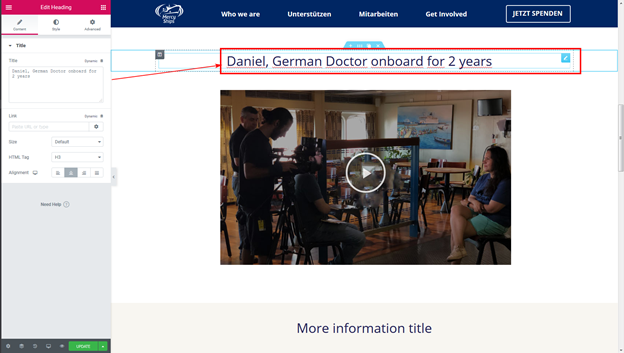
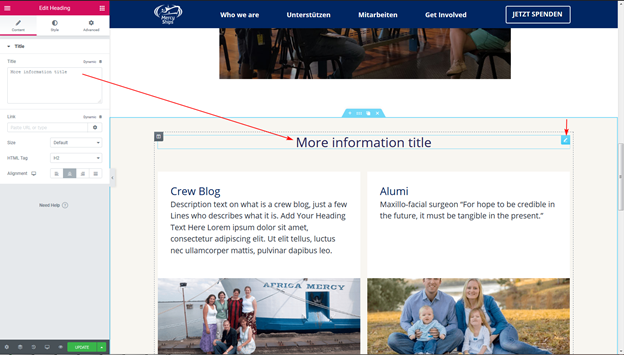
Change Slide using custom post type query:
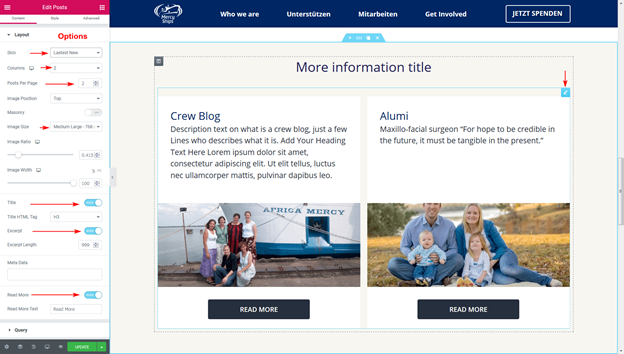
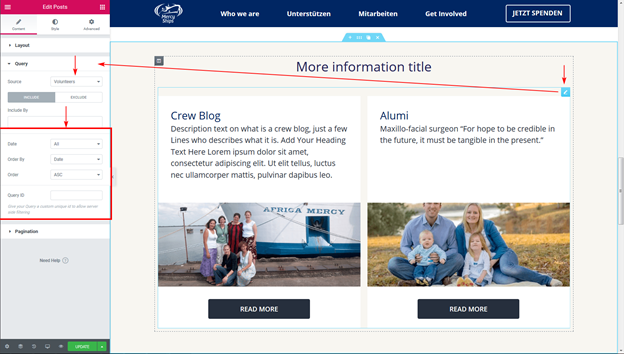
What we do Guide
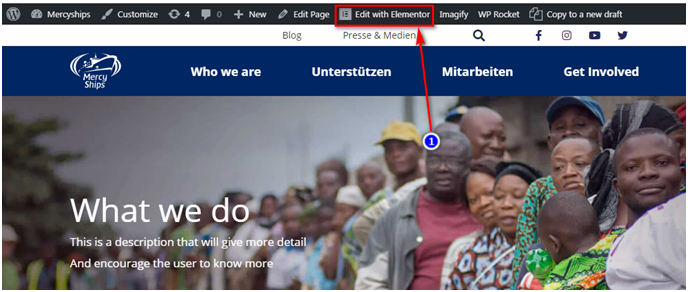
BANNER
MEDICAL RESPONCE
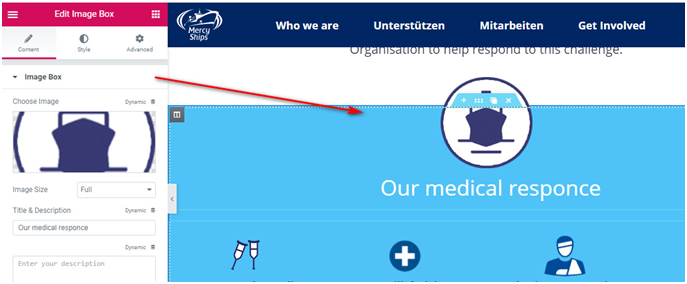
Edit element => Edit Layout, Query… => Update

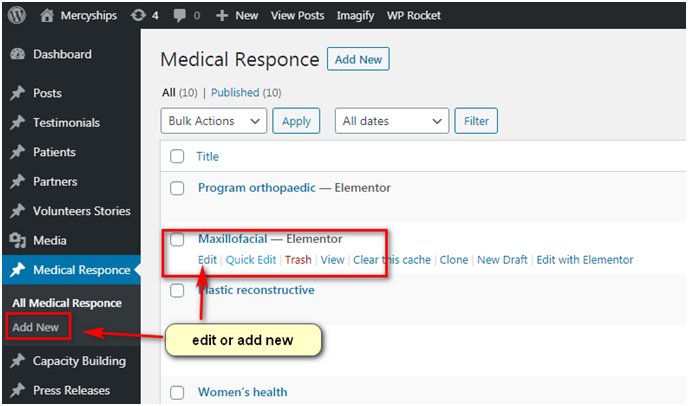
How to add new and edit medical responce
CAPACITY BUILDING
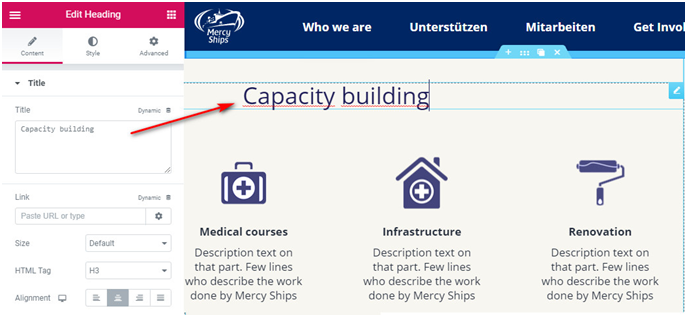
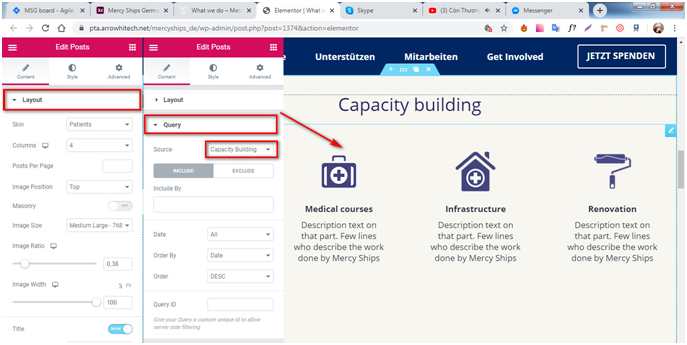
Edit element => Edit Layout, Query… => Update
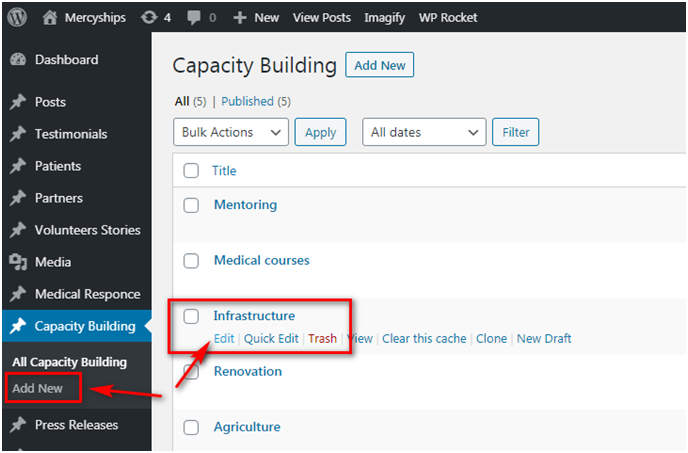
How to add new and edit Capacity building
VIDEO BOX

edit video => edit image overlay => update
Where we are now


 +46 (0)31 77 66 936